

Department Class List/Roster
Use the Department Class List card to look up the list of students who are enrolled in and waitlisted for a specific course.
After choosing the term, you can look up courses in the search bar. Continue reading to learn best practices for looking up a specific course, or looking up a departments 100, 200, or 300-level courses.
- Log into MyVassar
- Click the Department Class List card on your homescreen OR
- Search for the Department Class List card in the View All Cards page.
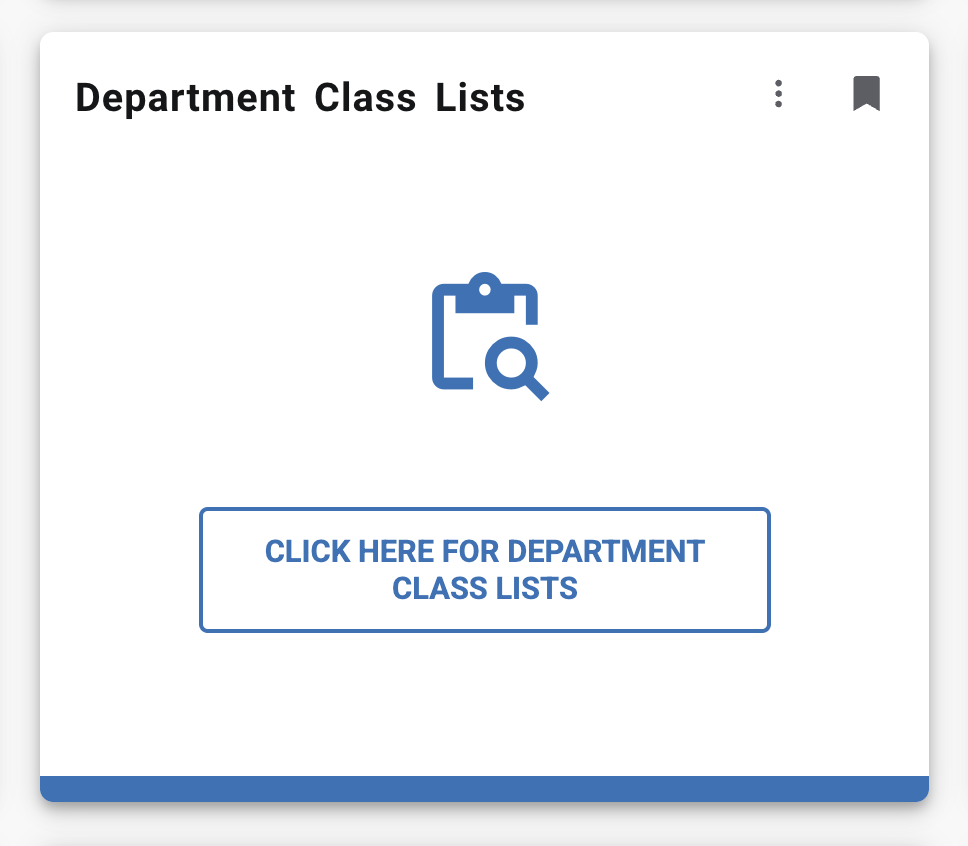
- Search for the Department Class List card in the View All Cards page.
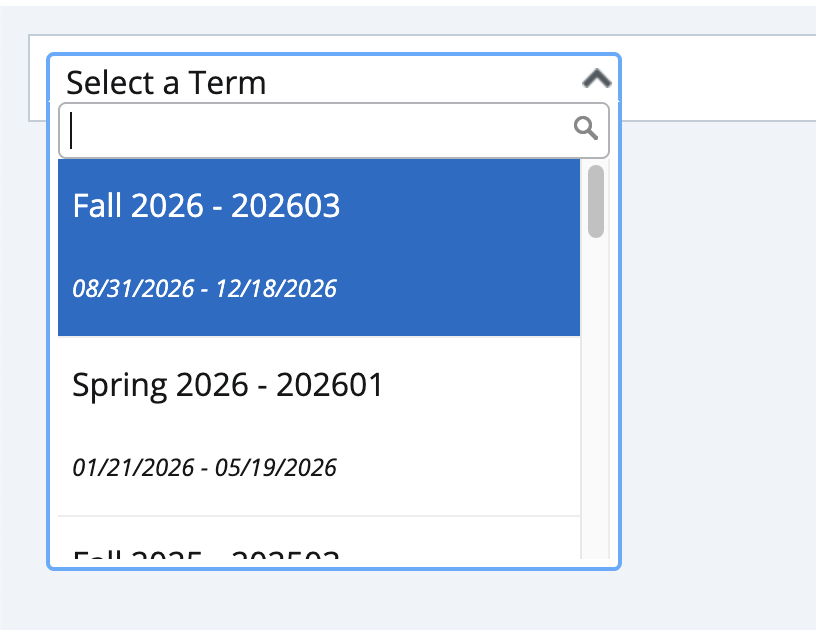
- Select a term, for example Spring 2026. You can go as far back as Fall 1996
- Use the search bar on the right of the screen to:
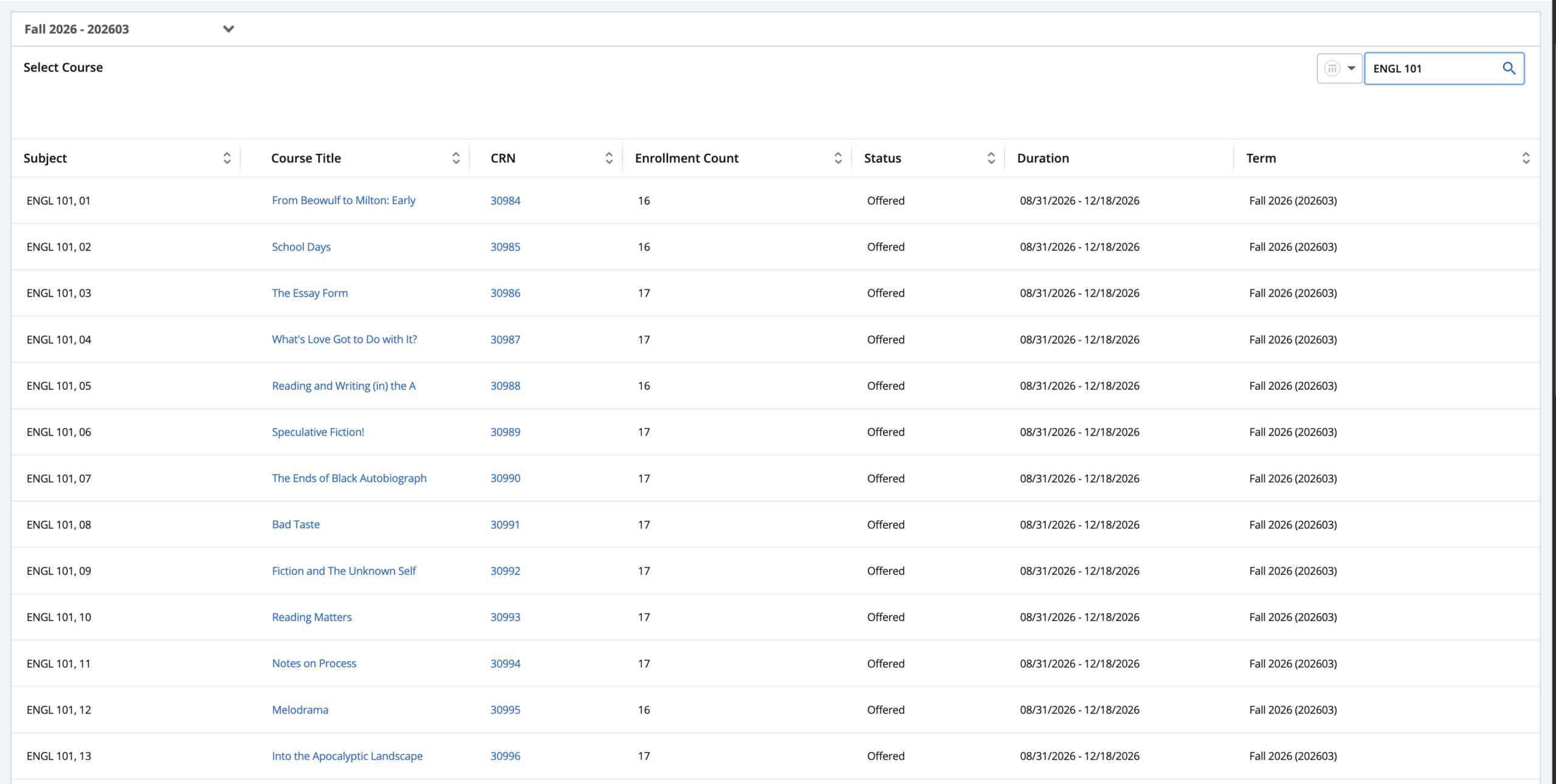
- Look up a specific course
- Type the course prefix, hit the spacebar, then type the number (e.g., ENGL 101)
- Type the course prefix, hit the spacebar, then type the number (e.g., ENGL 101)
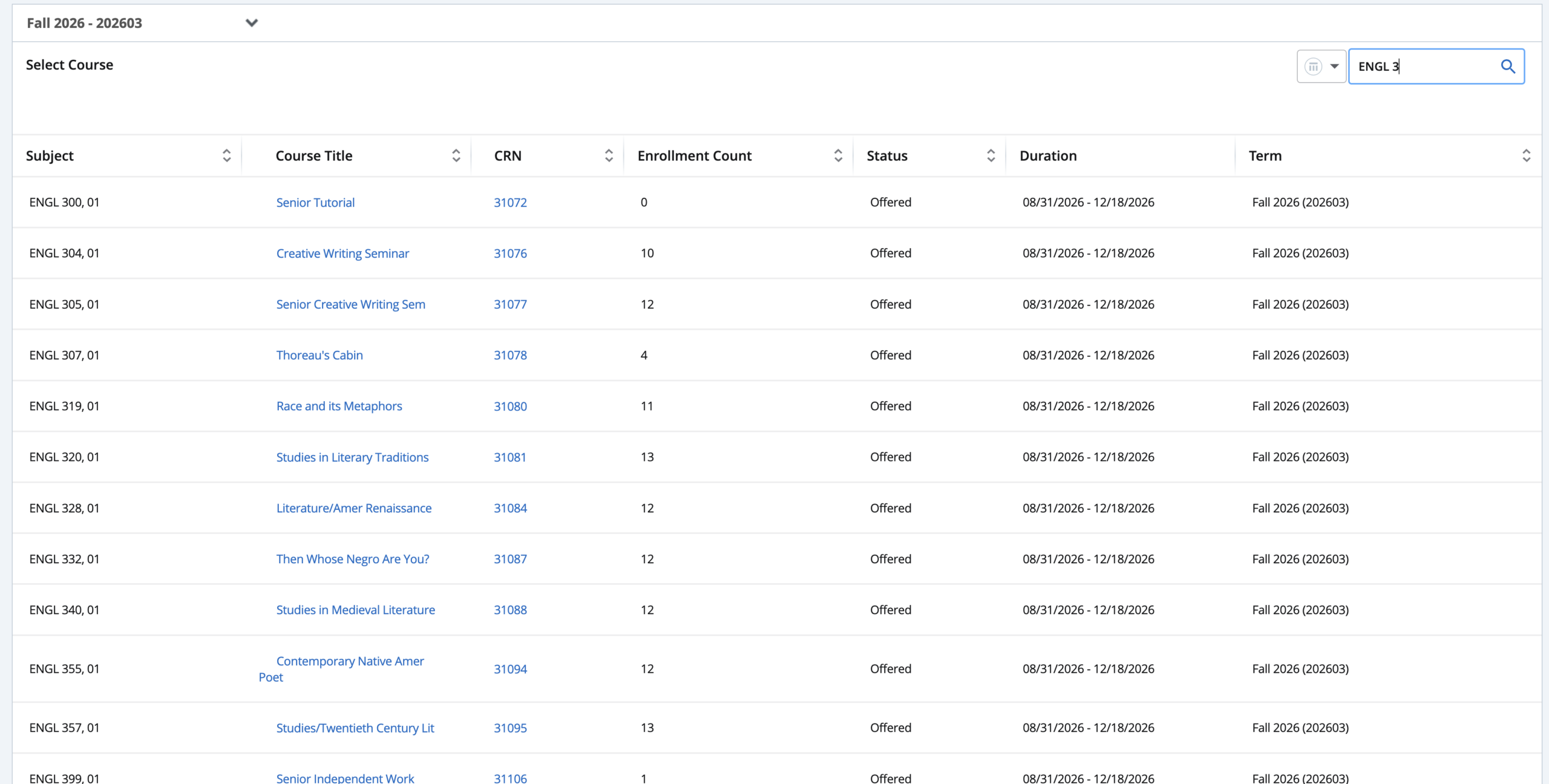
- Find a range of courses
- Type “ENGL 1” to find all 100-level courses from the English department
- Type “ENGL 2” to find all 200-level courses from the English department
- Type “ENGL 3” to find all 300-level courses from the English department
- Look up a specific course
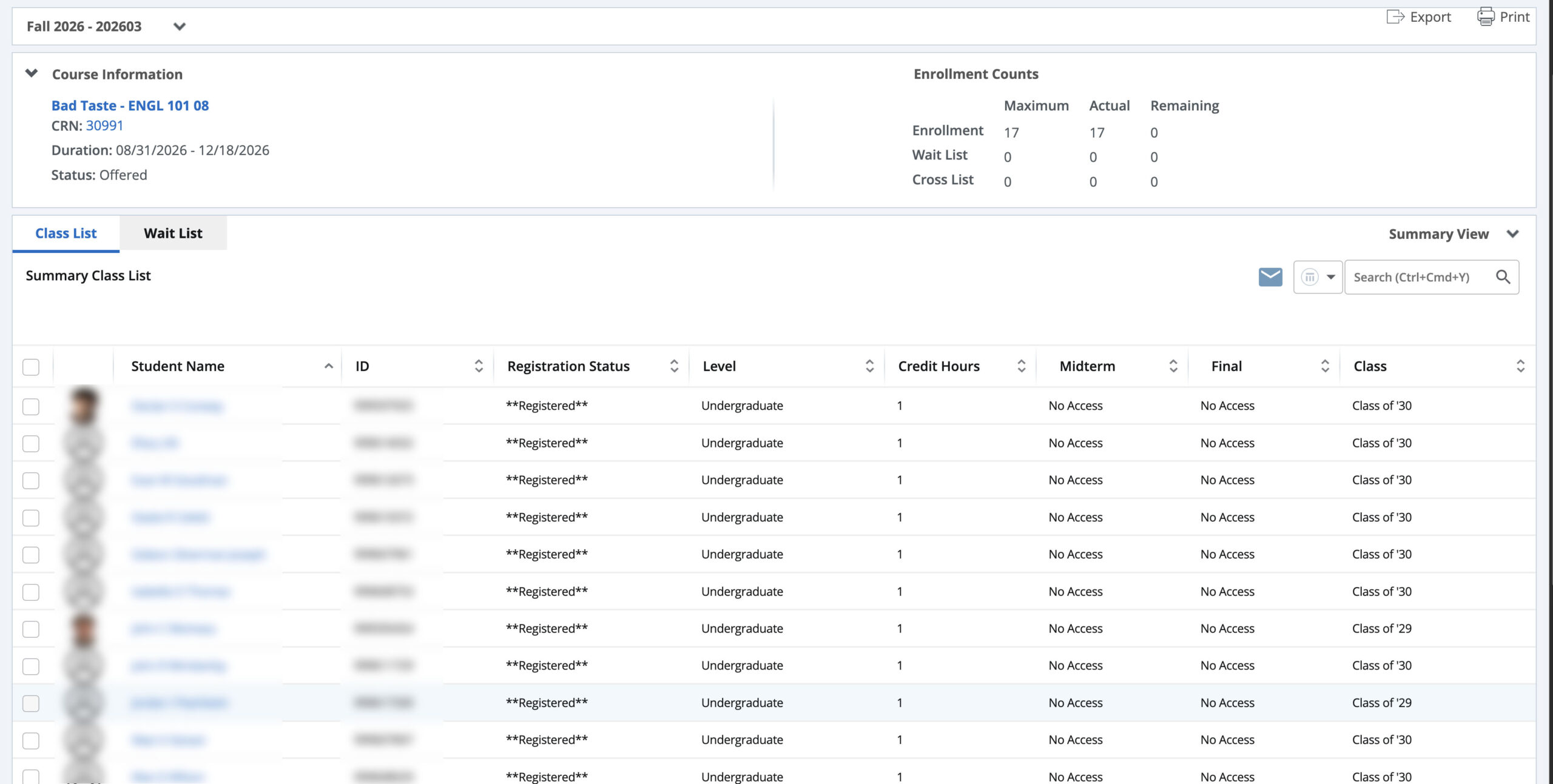
- When you have found the course, click on the blank space of a course to view the class list/roster. Clicking the blue links will only show a pop up of additional information about the course, but not the Class List.
The Class List will show you the following:
- Course Information
- Enrollment Counts
- Waitlist Information
- Roster Information
- Student name
- Student ID (999#)
- Student photos
- Final Grade (if entered)
There are few things you can do in the class list:
- Click the blue-linked Student Name to view their Student Profile
- Email students by checking the boxes next to the student names and clicking the email icon
- Export the class list as an excel spreadsheet in the upper right hand corner
- Print the class list, which will include the student photos in the upper right hand corner
Department Majors
- Log into MyVassar
- Locate the Department Majors card on your homescreen OR
- Search for the Department Majors card in the View All Cards page.
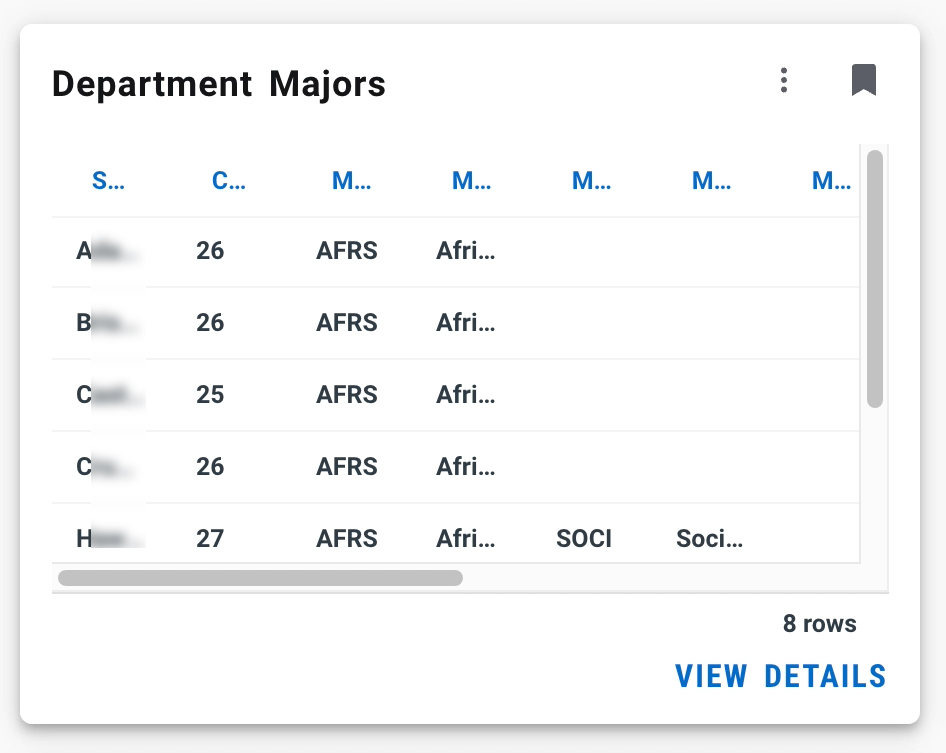
- Search for the Department Majors card in the View All Cards page.
- Click VIEW DETAILS to open Department Major report.
How to change the Academic Period filter
- Click on the Academic Period filter button
- Backspace to remove the default academic period(e.g., 202603)
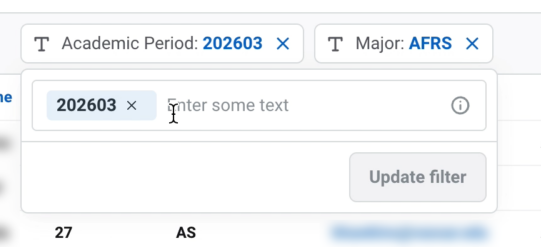
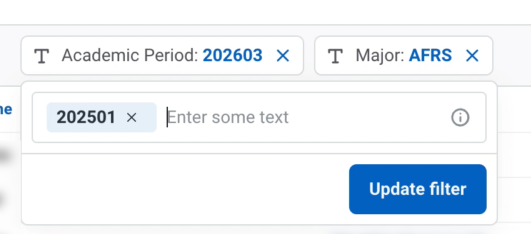
- Type the academic period you want (e.g., 202501)
- Click Update filter
How to change the Major filter
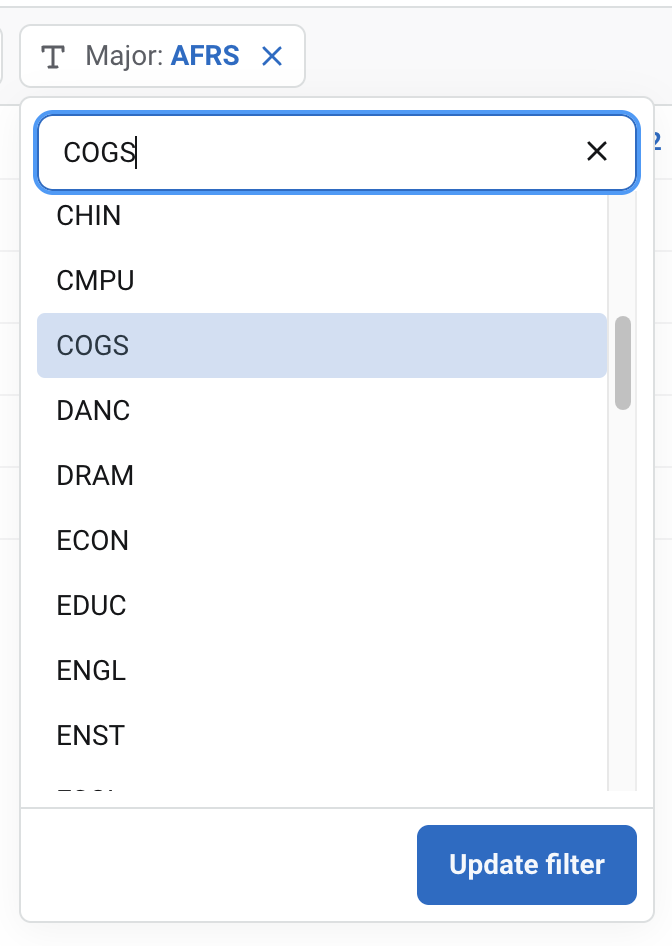
- Click on the Major filter button
- Select the major of interest
- Click Update filter
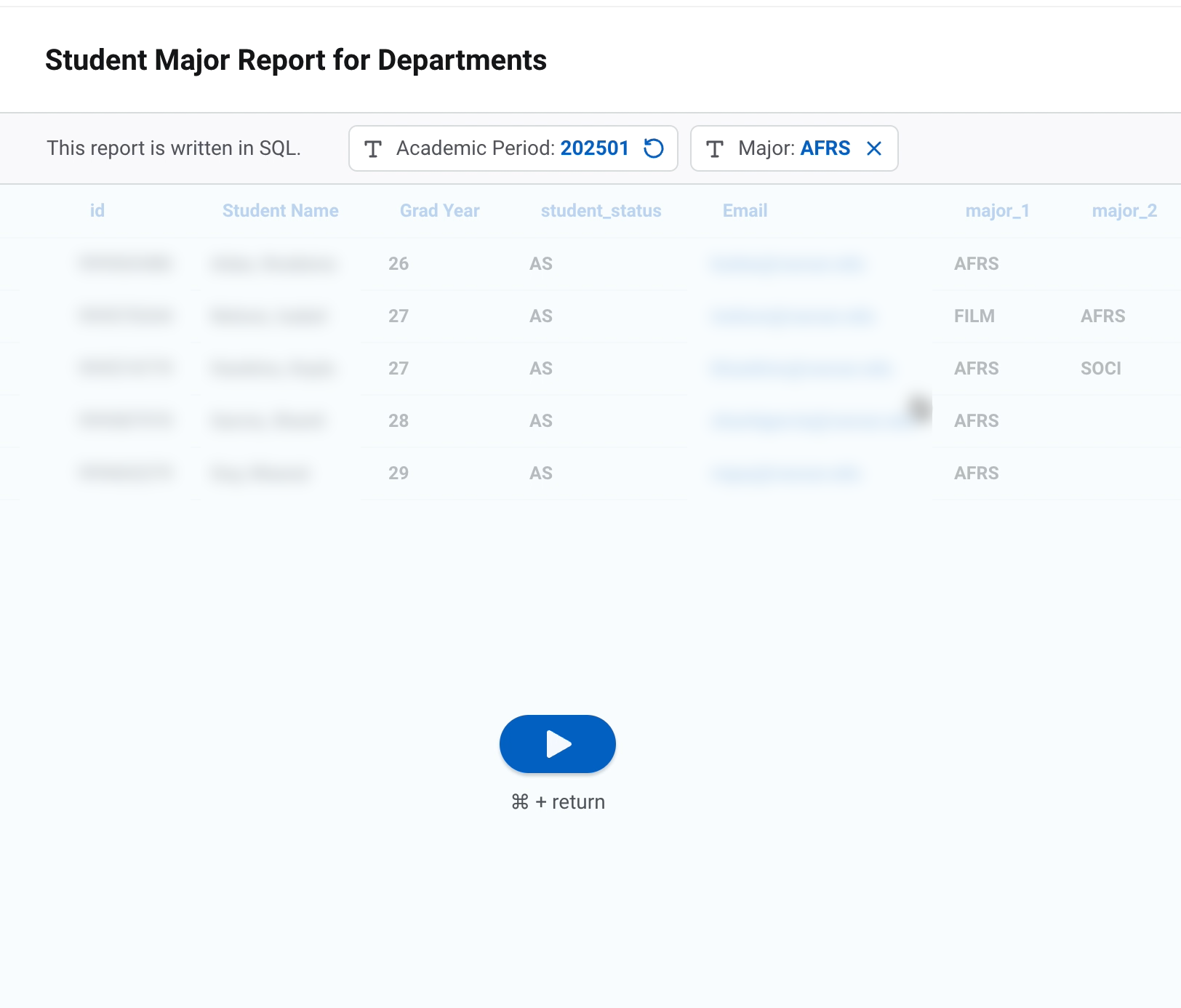
- This “Play” button will hover over your screen anytime you change a filter(s). When you have adjusted your criteria, click the Play button, or use the prompted keyboard shortcuts to show your new results.
- Mac shortcut: ⌘ + return
- Windows shortcut: CTRL + enter
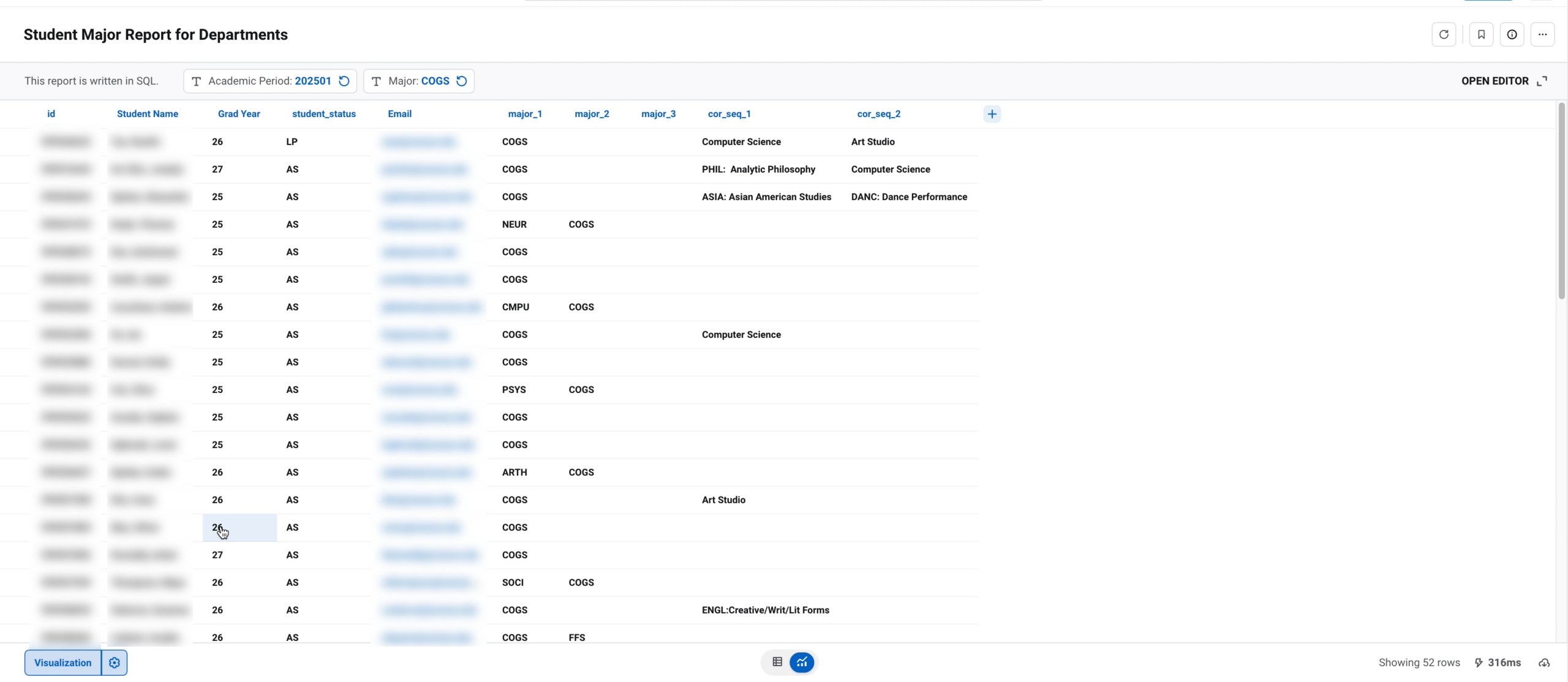
The department majors report will show you the following information about student majors:
- ID (999#)
- Last Name, First Name
- Grad Year (e.g., 29 = Class of 2029)
- Student Email
- Major 1
- Major 2 (if they are a double major)
- Major 3 (if they are a triple major, in rare cases)
- Correlate Sequences
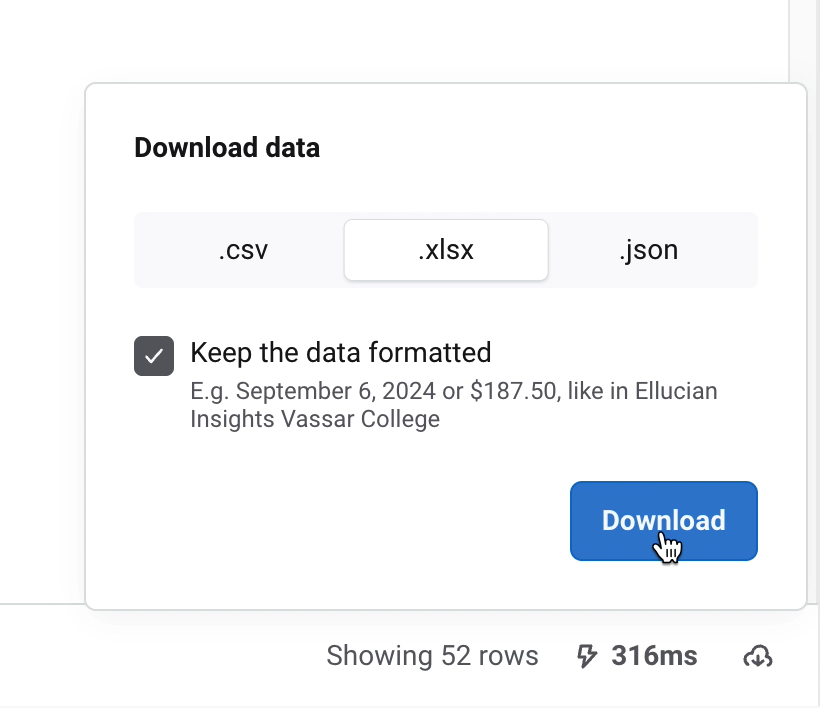
You can download this information as an excel spreadsheet:
- Click the cloud in the lower right corner of the webpage.

- Select the file type you want (csv, excel, json file)
- Click Download
Department Correlate
- Log into MyVassar
- Click the Department Correlates card on your homescreen OR
- Search for the Department Correlates card in the View All Cards page.
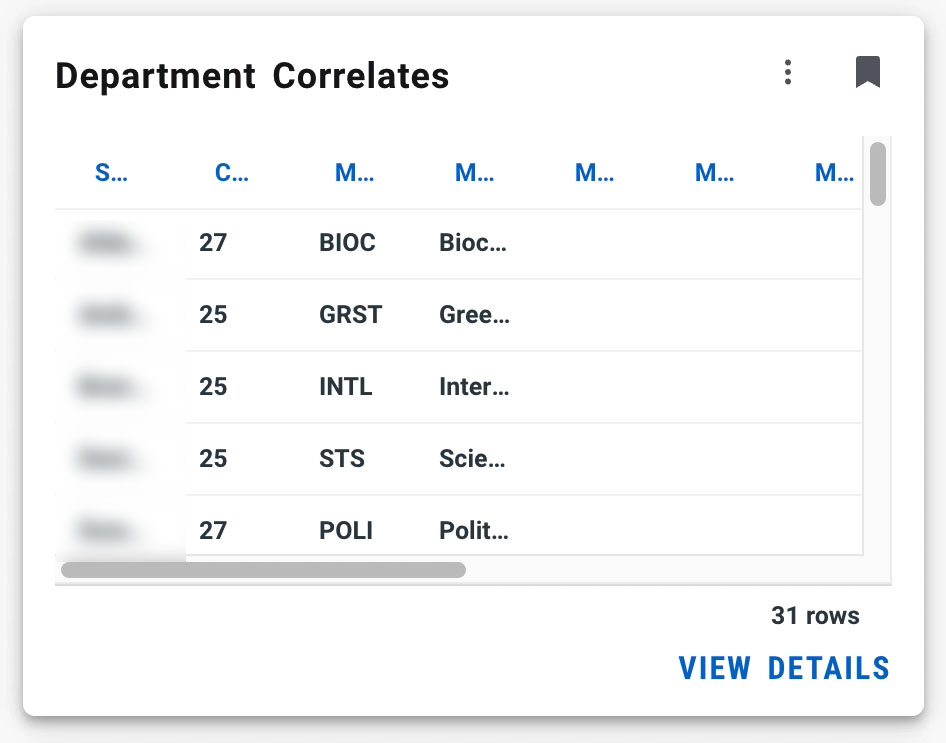
- Search for the Department Correlates card in the View All Cards page.
- Click VIEW DETAILS to go to the report.
How to change the Academic Period filter
- Click on the Academic Period filter button
- Backspace to remove the default academic period(e.g., 202603)
- Type the academic period you want (e.g., 202501)
- Click Update filter
How to change the Correlate filter
- Click on the Correlate sequence filter button
- Select the correlate of interest (e.g., Art Studio)
- Click Update filter
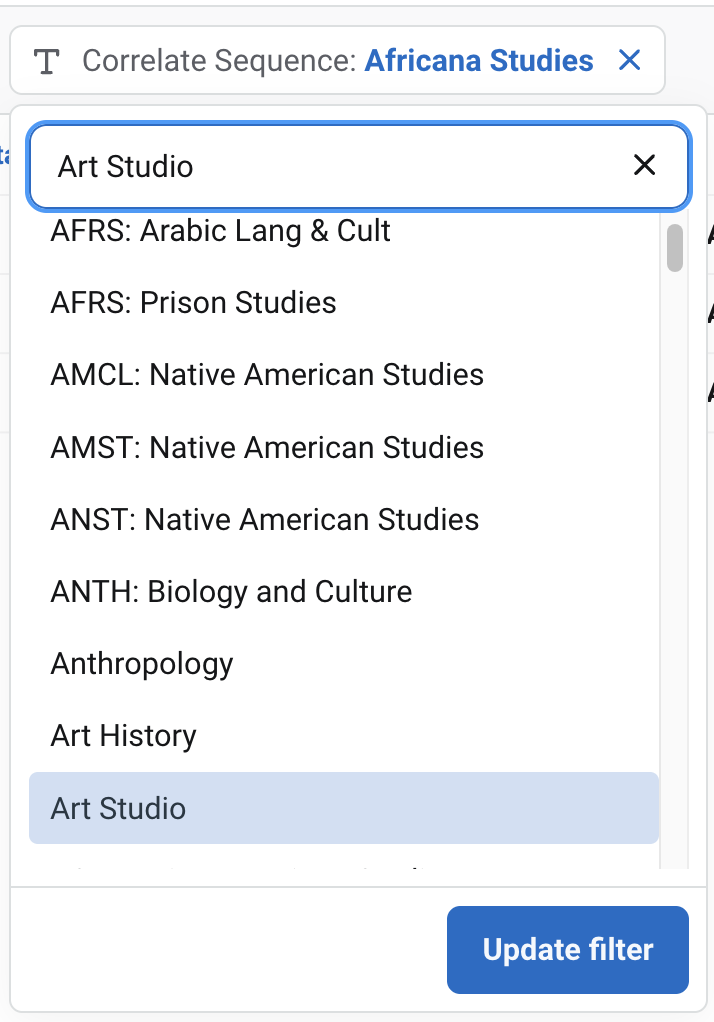
- This “Play” button will hover over your report anytime you change a filter(s).
 When you have adjusted your criteria, click the Play button, or use the prompted keyboard shortcuts to show your new results.
- Mac shortcut: ⌘ + return
- Windows shortcut: CTRL + enter
The department correlates report will show you the following:
- Student name
- Student ID (999#)
- Class Year
- Major 1
- Major 2 (if they are a double major)
- Correlate Sequence 1
- Correlate Sequence 2 (if they have a second correlate sequence)
- Student Email
You can download this information as an excel spreadsheet by clicking the cloud with an arrow in the lower right corner of the webpage.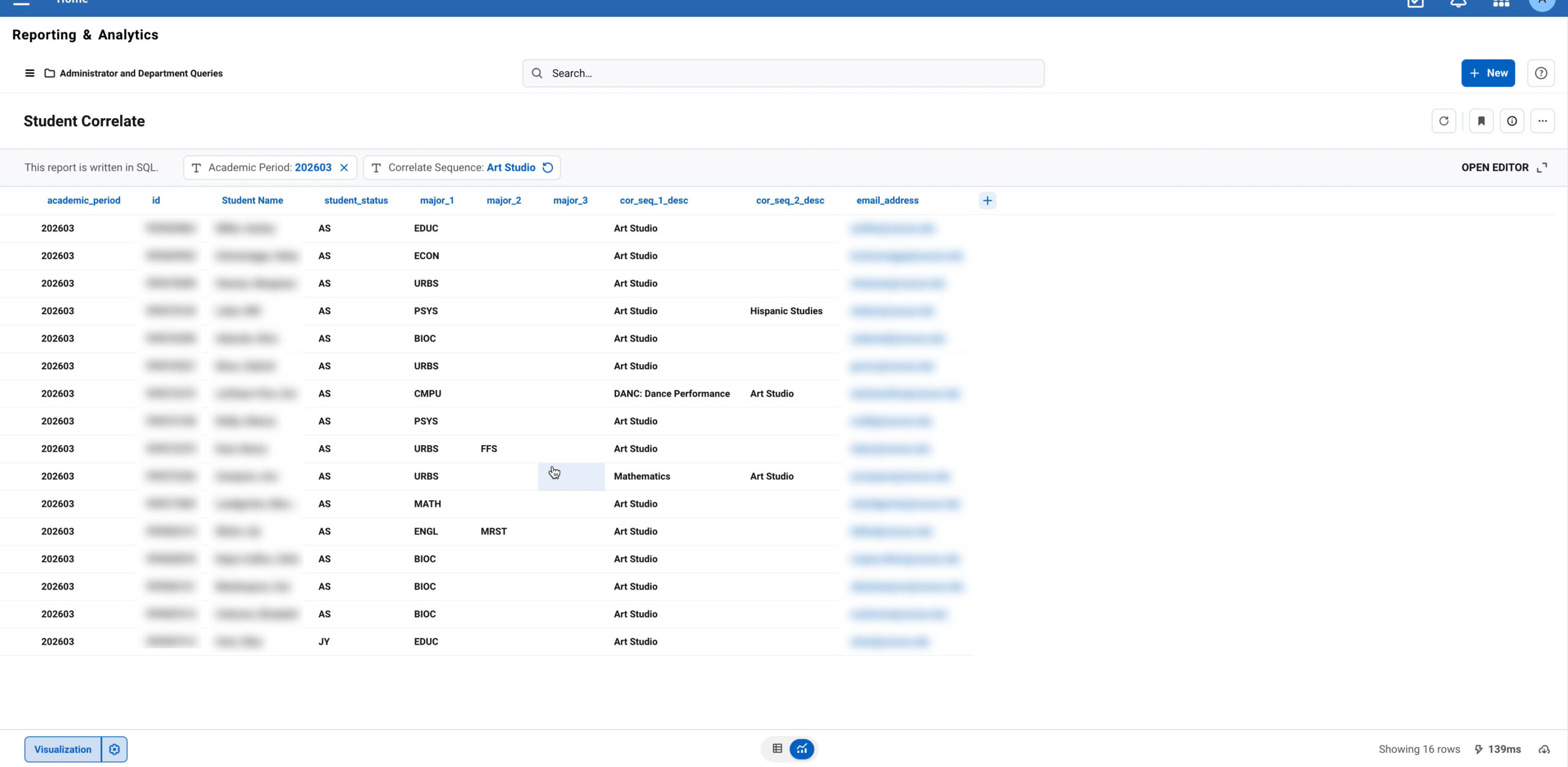
You can download this information as an excel spreadsheet:
- Click the cloud in the lower right corner of the webpage.
- Select the file type you want (csv, excel, json file)
- Click Download
Student Address and Contact Information
- Log into MyVassar
- Scroll to the Student General Information card on your homescreen OR
- Search for the Student General Information card in the View All Cards page.
- For phone numbers, click the Phone Numbers link.
- For addresses, click on the Addresses link.
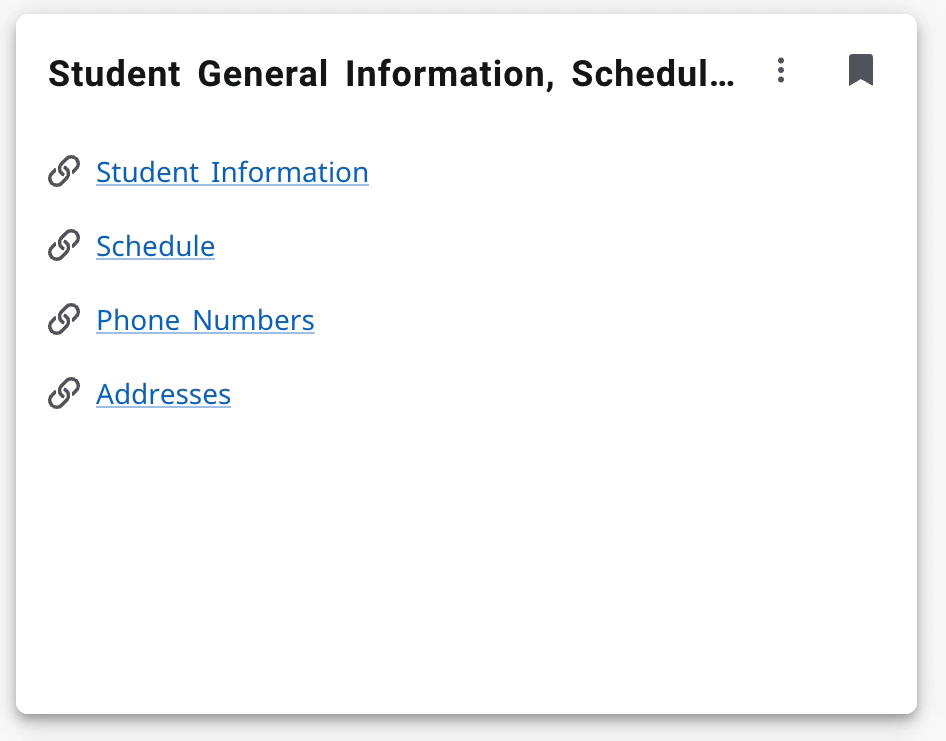
- In the report, use the filter tools to look up a student’s phone number or address.
- The Student’s Name
- The Student’s ID (999#)
You can download this information as an excel spreadsheet by clicking the cloud with an arrow in the lower right corner of the webpage.
Student Schedule
- Log into MyVassar
- Scroll to the Student Schedule card on your homescreen OR
- Search for the Student Schedule card in the View All Cards page.
- Click View Details, which will take you to a student schedule report.
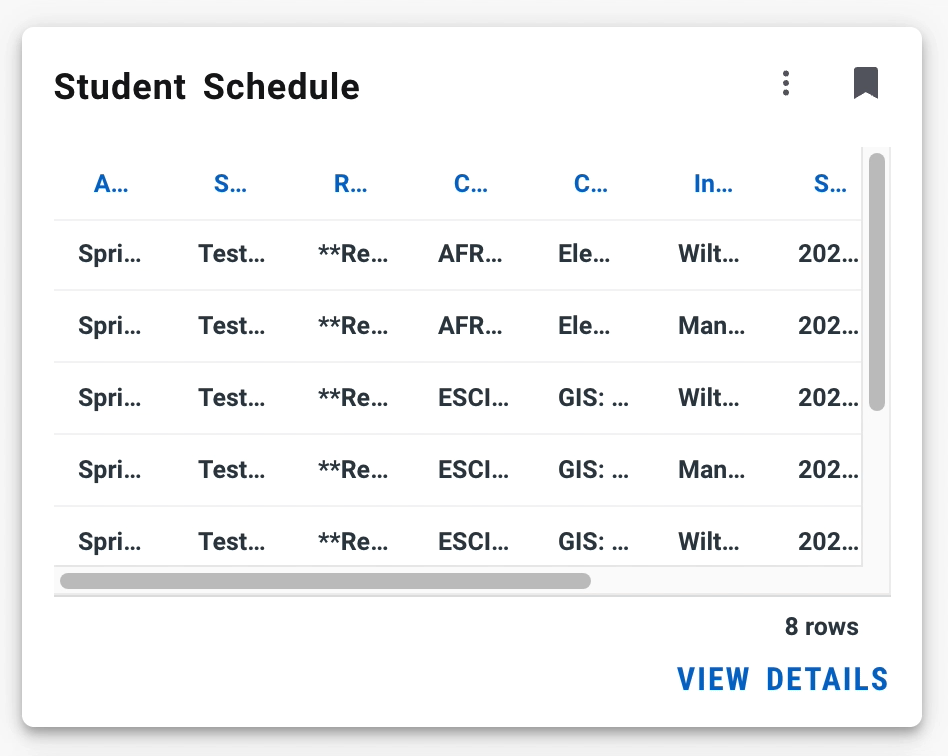
- In the report, use the filter tools to look up a specific student’s schedule.
- The Term
- The Student’s Name
- The Student’s ID (999#)
You can download this information as an excel spreadsheet by clicking the cloud with an arrow in the lower right corner of the webpage.
Student Transcript
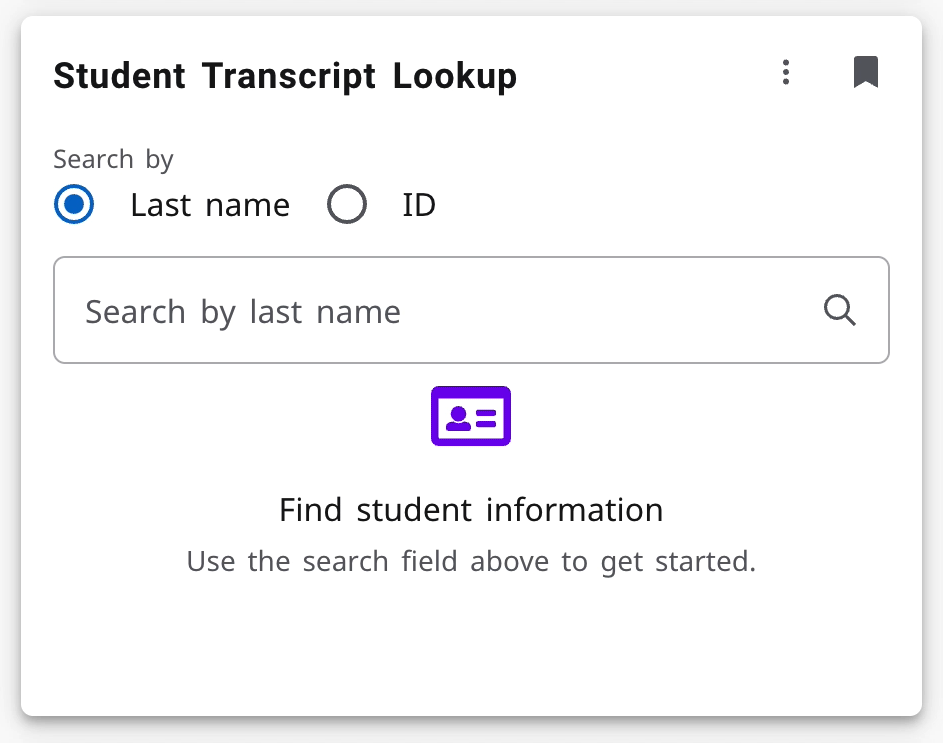
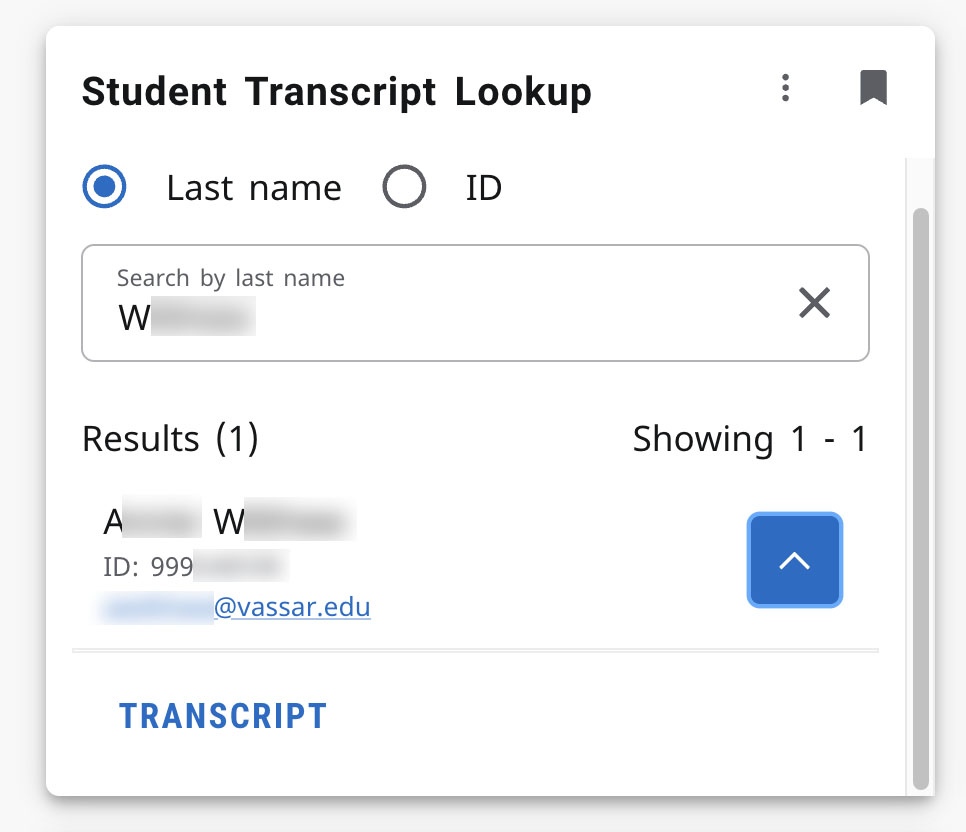
5. You will be prompted to Undergraduate and Unofficial Transcript in the dropdowns.
6. Click Submit.

General Degree Requirement Progress
- Locate Degree Works card on your home page OR
- Click View All Cards and search “Degree Works” if it does not appear on your home screen.
- Click on the card link, which will take you to the Degree Works page. If you have not logged in recently, you may be prompted to log into Degree Works.

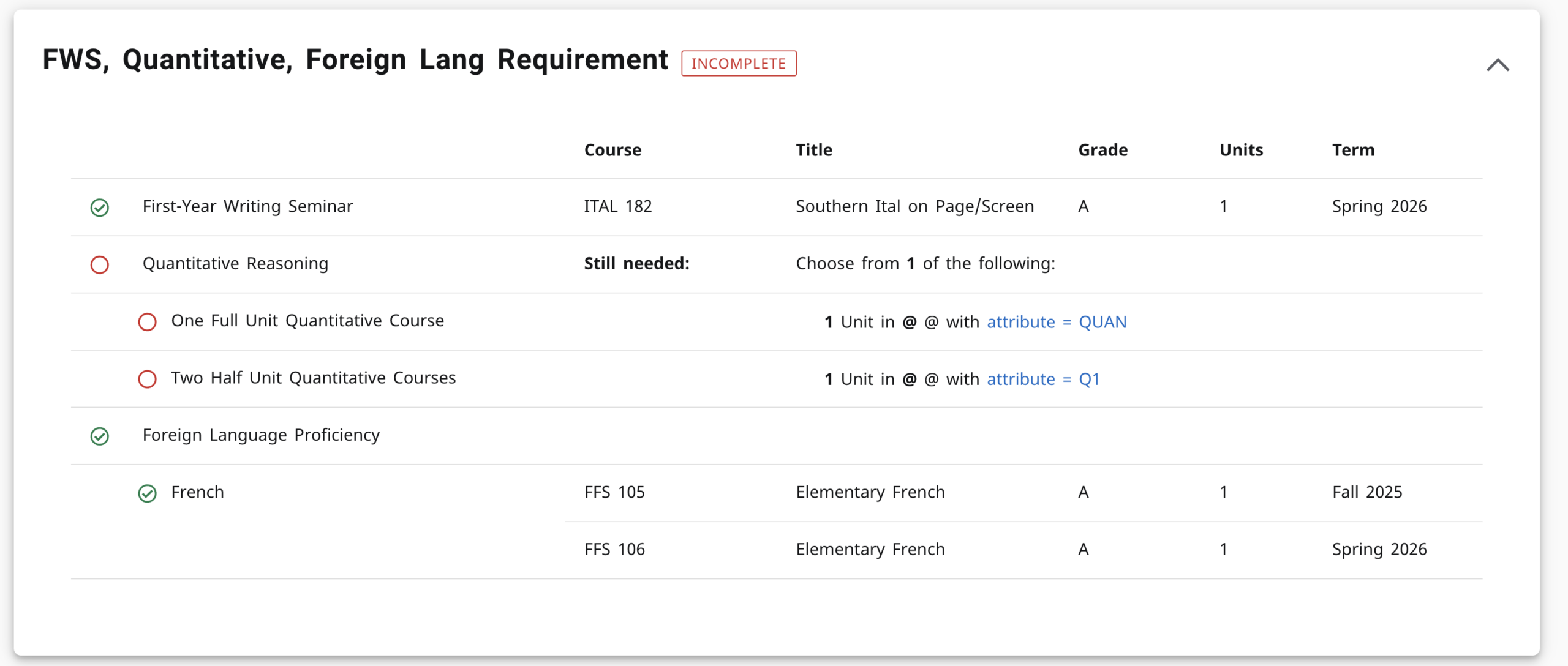
The “FWS, Quantitative, Foreign Lang Requirement” block will show you which requirements are:
- Complete

- Incomplete (the student has not taken nor are they currently taking a course that meets the requirement)

- In progress (they are currently taking a course that meets the requirement)

Finding the Schedule of Classes in MyVassar
- Log into MyVassar
- If the Schedule of Classes is not located on your Home page, click View All Cards and search “Schedule of Classes”

- You can:
- Click on the link to enter the Schedule of Classes AND/OR
- Bookmark it to your home page to quickly access it in the future
- After clicking the Schedule of Classes card, select the appropriate term (e.g., Spring 2027). Click continue.

- You have now landed on the search page, where you can:
- Use the simple search to look up courses by Subject (e.g., Women Feminist Queer Studies), Course Number, and/or Keyword.
- Use the advanced search to look up courses by instructor, unit amount, open sections, six-week courses, and more.
To learn more about how to search for courses, follow the next visual guide: Schedule of Classes Search Tools.
Schedule of Classes Search Tools
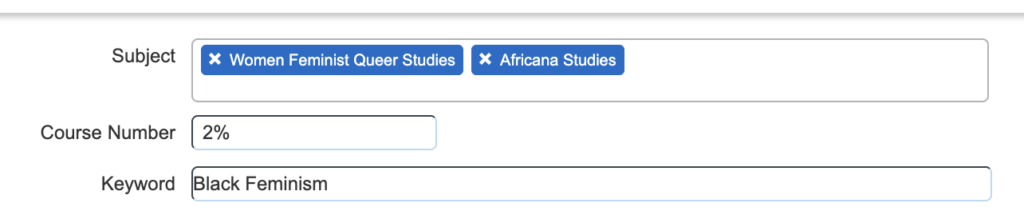

You want to find courses with a specific professor that still have seats available and take place on Monday and Wednesday.
Performing an advanced search will populate the following results below: 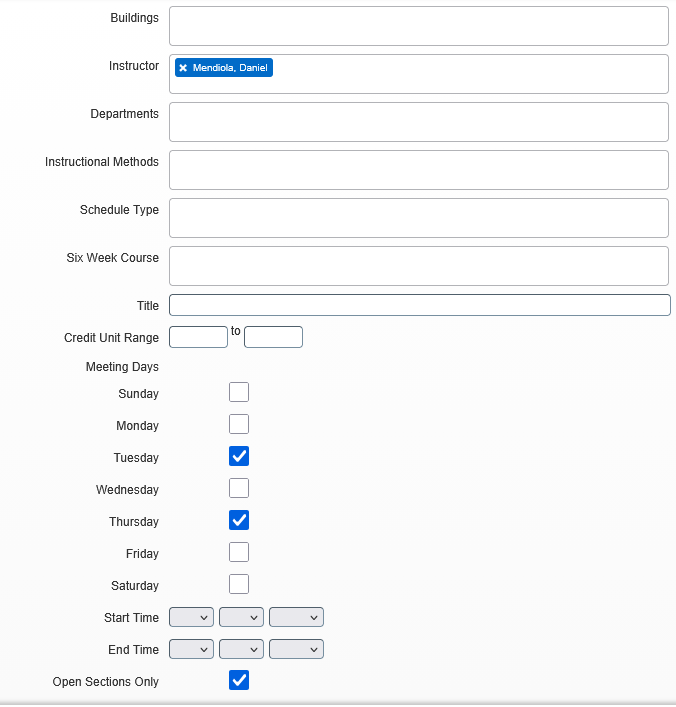

- If you need to adjust your search, click Search Again in the upper right hand corner of your search results page.

Your Search Results
- To find Prerequisite and Cross-Listed information, click on the underlined title link (e.g., Global Geography) which will show more class details as a popup.
- Click the Prerequisite tab to see if the course has any prerequisites.
- Click the Cross Listed Courses tab to see if the course cross-lists with another course.
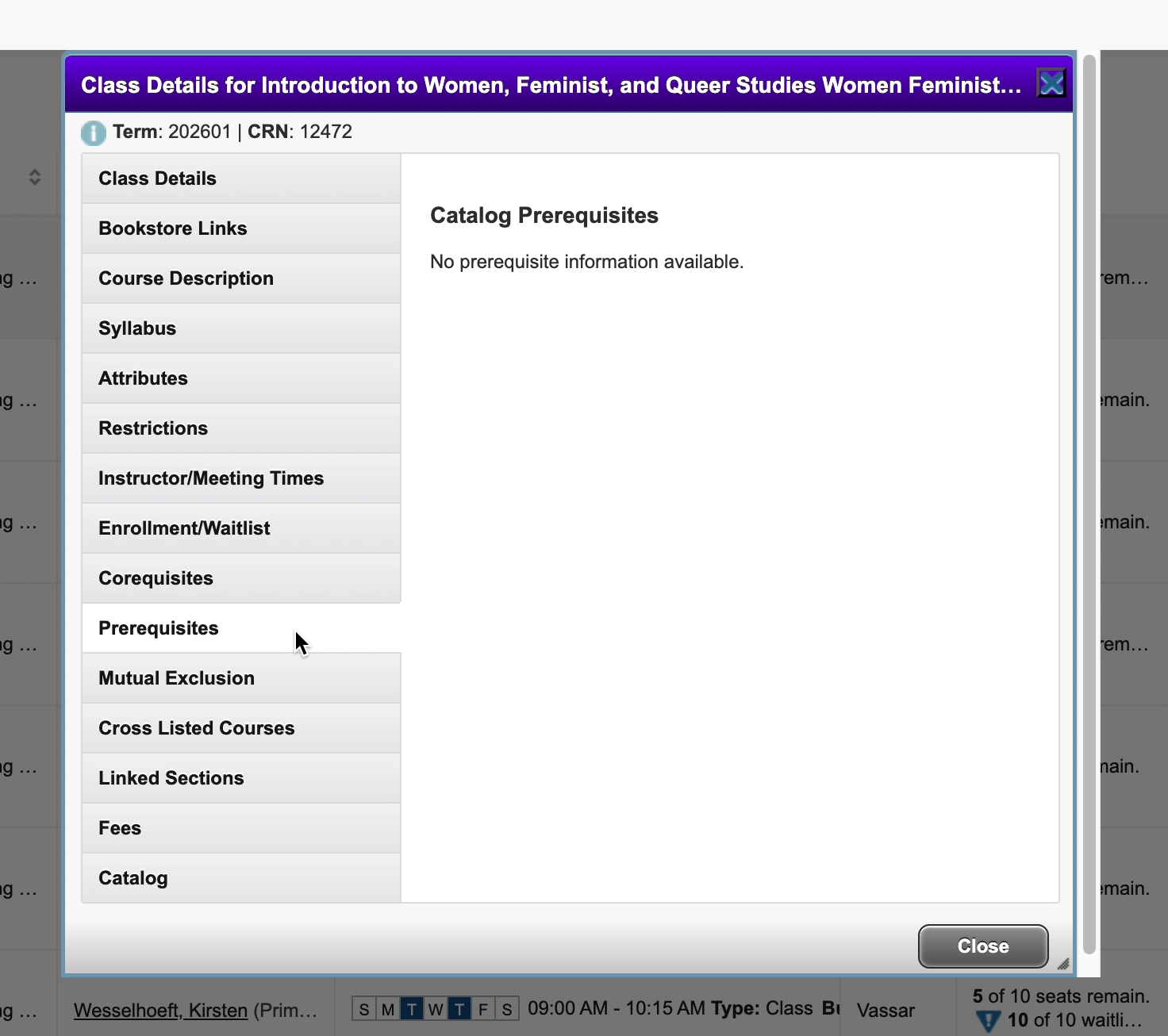
- If you need to adjust your search, click Search Again in the upper right hand corner of your search results page.
Enter Final Grades
- Log into MyVassar
- Click the My Faculty Grading card on your homescreen OR
- Search for the Faculty Grading card in the View All Cards page.
 Clicking on the My Faculty Grading card will direct you to the Faculty Grading page.
- Locate the course you want to submit grades for, and click the blue link.

- The Enter Grades panel will populate at the bottom of the page, showing the students in your course and the final grade drop down.
- Begin entering grades by clicking the drop down next to the final grade column, next to each corresponding student.
- Please note the letter grade order: A, A-, B+, B, B-, etc.

- Please note the letter grade order: A, A-, B+, B, B-, etc.
- Click Save at the bottom of the screen when you have finished to save your progress. Clicking Reset will undo any unsaved changes.

Please Note:
- Grades cannot be changed after they are rolled. If grades have rolled, a check mark will replace the final grade drop down.
- You do not have to enter grades all at once. Click Save to save your progress and return later to enter additional grades.
Import Final Grades with an Excel Spreadsheet
- Navigate click on the My Faculty Grading card to go to the Faculty Grading Page.
- On the Faculty Grading page, select the course you want to enter grades for.
- The Enter Grades panel will populate at the bottom of the page, showing the students in your course and the final grade drop down.

Now that you’ve selected the course for final grading, you will create an excel template to enter grades.
- On the upper right-hand side, click the gear icon, which will populate a drop down.
- On the drop down, click Export Template. This will generate an pop-up prompting you to export the template as an .xls file or an .xlsx file.

- Choose either file options (.xls or .xlsx ), and click Export. Your file has now downloaded a template with the grading information.

- You can edit the excel document and delete certain columns, but there are 4 columns you must keep:
- Term Code (e.g., 202601)
- CRN (e.g, 10994)
- Student ID (999123456)
- Final Grade
- In the Final Grade column, enter the student’s grade (e.g., A, B-, C+).
- IMPORTANT: Make sure you save your changes before moving on to the next step. Otherwise, your unsaved grade entries will not import!

Now you will import the excel file with the updated grade(s). On the grading webpage make sure you are still on the correct course. The course CRN in your excel spreadsheet should match the course CRN on the webpage. If they do not match, an error will prevent you from entering incorrect grades.
- Click the Gear icon again, and click Import.

- In the Import pop-up, click the Browse button to select your file.
- Click Upload.
- Click Continue.

- Preview the file, and click Continue again.
- Make sure your columns have mapped correctly, and click Continue again.
- The drop downs should match each asterisked *column. You will not be able to continue if they do not match.

- The drop downs should match each asterisked *column. You will not be able to continue if they do not match.
- When validating your data, confirm the student’s grade, then click Continue.
- When finishing your import, you will be notified that the import is complete without errors. Click Finish.
Success! You have now imported the student’s grade.
View Active Courses
- Log into MyVassar
- Click the My Classes card on your home screen OR
- Search for the My Classes card in the View All Cards page

- After clicking the My Classes card, you will land on your Active Assignments page.
- Your Active Assignments are courses with active students that have not yet rolled to Academic History

- Your Active Assignments are courses with active students that have not yet rolled to Academic History
- Courses are ordered alphabetically by prefix, then numerically by section (e.g., AFRS-108, AFRS-220, ESCI-224, GEOG-224, then WFQS-100).
View Your Class Roster (Active Courses)
- Log into MyVassar
- Click the My Classes card on your home screen OR
- Search for the My Classes card in the View All Cards page
- Search for the My Classes card in the View All Cards page
- After clicking the My Classes card, scroll to the course. Make sure you are on the Active Assignments tab, not the Assignment History tab.
- Tip: Courses are ordered alphabetically by prefix, then numerically by section (e.g., AFRS-108, AFRS-220, ESCI-224, GEOG-224, then WFQS-100).
- Inside the course box, click the Class List link under Roster

- You can now see your roster for that class.

From the Class List, you can:
- View enrollment and waitlist information.
- Email students in this class by checking the boxes next to their names and clicking the Email icon.

- Print your class roster with student photos by clicking the Print button.
- Enter the grading portal when final grading has opened. If the final grading period has not opened, you will not be able to enter final grades.
View Your Assignment History
- Log into MyVassar
- Click the My Classes card on your home screen OR
- Search for the My Classes card in the View All Cards page
- Search for the My Classes card in the View All Cards page
- After clicking the My Classes card, you will land on your Active Assignments page.
- Click on your Assignment History tab at the top. This will list all the courses you are currently teaching and have taught in the past.

- Sort courses with the column titles. For example, click “Associated Term” to order courses by the newest or the latest term.

Find Advisee Information
- Log into MyVassar
- Locate the My Advisees card on your home screen OR
- Search for the My Advisees card in the View All Cards page
- Click the link in the My Advisees card

- You will land on the Advisee Search page. On this page you can do the following:
- Adjust the term to find advisees assigned to you during that term. If you want to access your current advisees, select the most current term.
- Search for a specific advisee with their Student ID, student email, or name.
- Click View My Advisee Listing to view all your advisees for a select term.

- Click on the Advisee’s linked name to view your advisee’s student profile.

Find Advisee Transcripts
- Click the My Advisees card
- You will land on the Advisee Search page. On this page you can do the following:
- Adjust the term to find advisees assigned to you during that term. If you want to access your current advisees, select the most current term.
- Search for a specific advisee with their Student ID, student email, or name.
- Click View My Advisee Listing to view all your advisees for a select term.
- After locating your advisee, click the advisee’s name to view their student profile.
- On the left side of their student profile, click Academic transcript under Additional Links.

You will be prompted to select Undergraduate and Unofficial Transcript in the Transcript Level and Transcript Type drop downs, respectively.
Click Submit.

- You are now viewing your advisee’s academic transcript.
General Degree Requirements
- Locate Degree Works card on your home page OR
- Click View All Cards and search “Degree Works” if it does not appear on your home screen.
- Click on the card link, which will take you to the Degree Works page. If you have not logged in recently, you may be prompted to log into Degree Works.
The “FWS, Quantitative, Foreign Lang Requirement” block will show you which requirements are:
- Complete
- Incomplete (the student has not taken nor are they currently taking a course that meets the requirement)
- In progress (they are currently taking a course that meets the requirement)
Entering Grades
- Log into MyVassar
- Search in the upper left-hand corner: “my faculty grading”
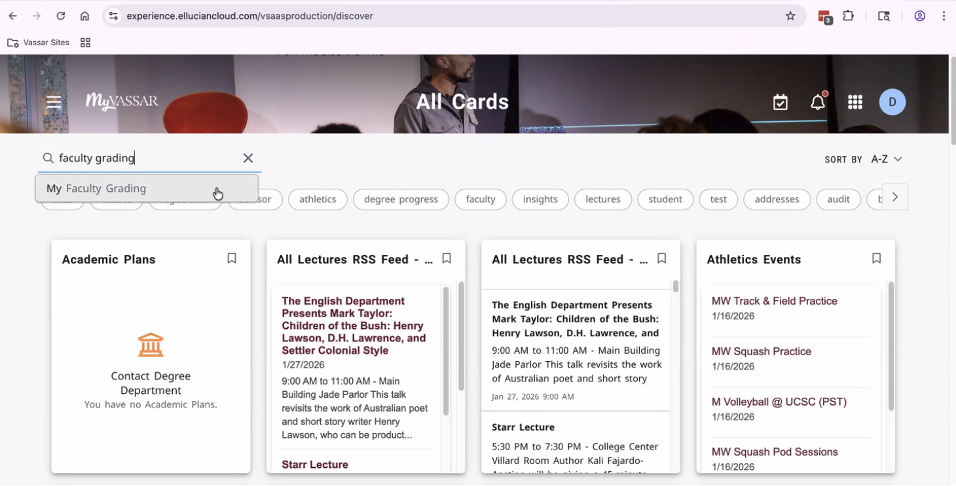
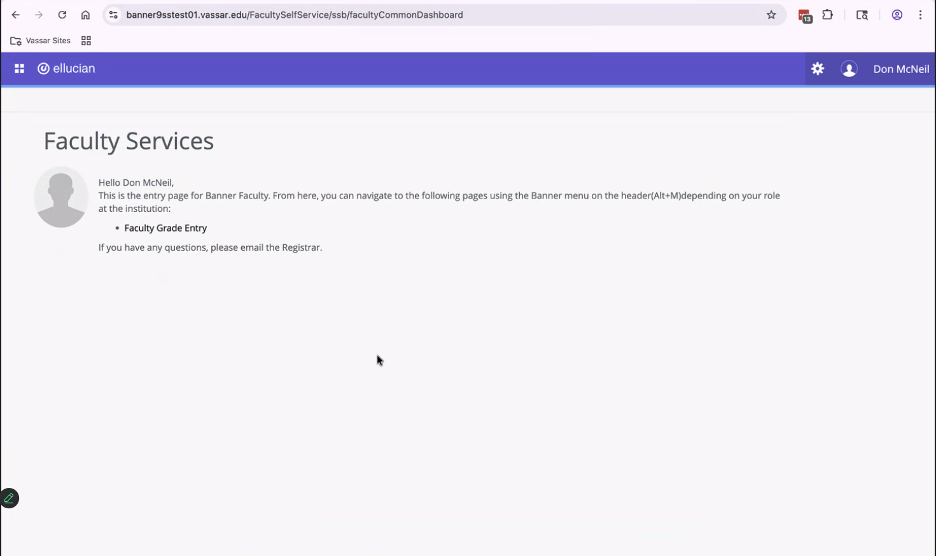
- Select the My Faculty Grading card. You will be taken to Faculty Services in Ellucian.
- In Faculty Service, select Faculty Grade Entry
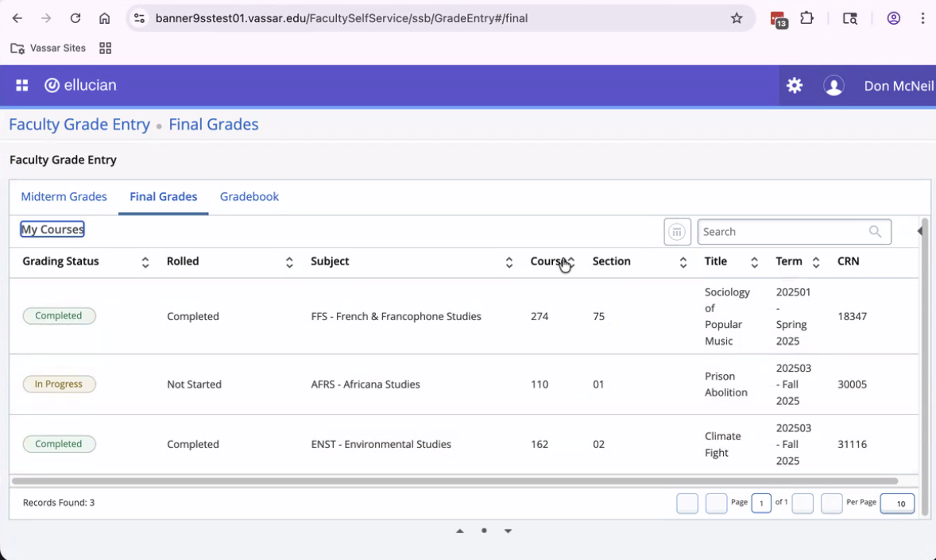
- Select Final Grades
- Select a Course
- Scroll down and select Enter Grades
- Enter each student’s grades in the Final Grade section (you can make multiple entries)
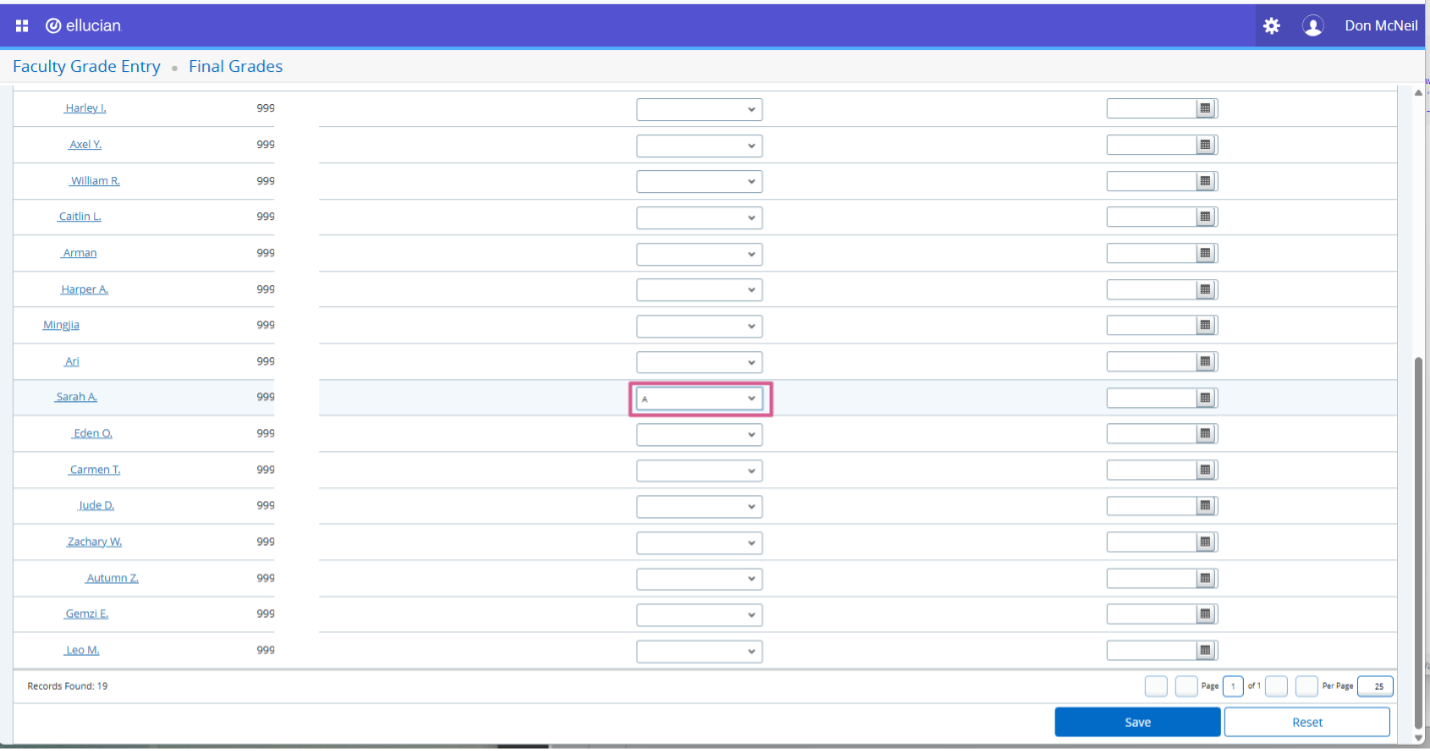
- Select Save at the bottom of the screen when you’re done (note: you can undo any unsaved entries by selecting the Reset button next to the Save button.
Guide 2
Guide 3
Entering Grades
- Log into MyVassar
- Search in the upper left-hand corner: “my faculty grading”
- Select the My Faculty Grading card. You will be taken to Faculty Services in Ellucian.
- In Faculty Service, select Faculty Grade Entry
- Select Final Grades
- Select a Course
- Scroll down and select Enter Grades
- Enter each student’s grades in the Final Grade section (you can make multiple entries)
- Select Save at the bottom of the screen when you’re done (note: you can undo any unsaved entries by selecting the Reset button next to the Save button.
Guide 2
Guide 3
Entering Grades
- Log into MyVassar
- Search in the upper left-hand corner: “my faculty grading”
- Select the My Faculty Grading card. You will be taken to Faculty Services in Ellucian.
- In Faculty Service, select Faculty Grade Entry
- Select Final Grades
- Select a Course
- Scroll down and select Enter Grades
- Enter each student’s grades in the Final Grade section (you can make multiple entries)
- Select Save at the bottom of the screen when you’re done (note: you can undo any unsaved entries by selecting the Reset button next to the Save button.
Guide 2
Guide 3
Entering Grades
- Log into MyVassar
- Search in the upper left-hand corner: “my faculty grading”
- Select the My Faculty Grading card. You will be taken to Faculty Services in Ellucian.
- In Faculty Service, select Faculty Grade Entry
- Select Final Grades
- Select a Course
- Scroll down and select Enter Grades
- Enter each student’s grades in the Final Grade section (you can make multiple entries)
- Select Save at the bottom of the screen when you’re done (note: you can undo any unsaved entries by selecting the Reset button next to the Save button.
Guide 2
Guide 3
Entering Grades
- Log into MyVassar
- Search in the upper left-hand corner: “my faculty grading”
- Select the My Faculty Grading card. You will be taken to Faculty Services in Ellucian.
- In Faculty Service, select Faculty Grade Entry
- Select Final Grades
- Select a Course
- Scroll down and select Enter Grades
- Enter each student’s grades in the Final Grade section (you can make multiple entries)
- Select Save at the bottom of the screen when you’re done (note: you can undo any unsaved entries by selecting the Reset button next to the Save button.
Guide 2
Guide 3
Entering Grades
- Log into MyVassar
- Search in the upper left-hand corner: “my faculty grading”
- Select the My Faculty Grading card. You will be taken to Faculty Services in Ellucian.
- In Faculty Service, select Faculty Grade Entry
- Select Final Grades
- Select a Course
- Scroll down and select Enter Grades
- Enter each student’s grades in the Final Grade section (you can make multiple entries)
- Select Save at the bottom of the screen when you’re done (note: you can undo any unsaved entries by selecting the Reset button next to the Save button.