MyVassar Training for Faculty & Advisors
Browse a variety of video tutorials, visual guides, and FAQ’s to help you navigate and complete necessary tasks in MyVassar. We will continuously update this page with new training materials. Resources may be reorganized throughout the academic year to highlight the most timely and relevant content.
Videos
- More videos coming soon!
Watch these quick tutorials to find your class list, advisee listing, and more. All videos are human-made and voiced by SIS project team members.
AskBanner to MyVassar Crosswalk
Class List/Roster
Advisee Listing
Step-by-Step Guides
Text and image based guides to learn about the following:
MyVassar Access & General Navigation
Logging into MyVassar
- MyVassar will be available on OneLogin.
- Use your SSO login to open MyVassar. PINs and 999 ID numbers are no longer required to access information.

Cards and Roles Explained
The information you accessed in AskBanner as a Faculty member and Advisor held a lot of data. In MyVassar, this data has been carried over and displayed in “cards” instead of a list of links mixed with other links for other campus roles.
These cards may have interactive elements, like buttons, links, and scrolling features. Other cards may just display static information.
The cards that you can see in MyVassar depends on what role you have. For example, students cannot view the card for Faculty Grading because they do not have the appropriate role. You cannot view the card for student billing because you do not have the appropriate role.
You may have a blended role that gives you access to more cards. For example, if you are an Advisor and a Faculty member, you will have access to Advisor cards and Faculty cards.
Your Homepage
The MyVassar home page shows your default set of cards, based on your role. Faculty and Advisors will see cards relevant to them as faculty and advisors, for example, the faculty grading card and the advisee card. 
To find more cards, click 🔍VIEW ALL CARDS on the right side of the dashboard. This will show you all cards, including cards that are and are not on your homepage.

Customizing Your Home Page
Don’t use a card on your home page? You can remove it from your home page by clicking the flag on the card.
You have more cards available to you in the View All Cards page. To add the card to your home page, click the flag.
Want the cards on your home page to be ordered differently? Drag cards in the order you prefer.
Removing a card from your homepage
- Click the flag button on the upper right corner of the card.
- The card will no longer appear on your homepage, but it will remain in the 🔍VIEW ALL CARDS page if you need to find it again.

Adding a card to your homepage
- Click 🔍VIEW ALL CARDS on the right side of your homepage.
- Locate the card, and click the flag button on the upper right corner of the card.
- The card has now been added to your home page.
Reordering cards on your homepage
- Click on the top of the card and drag it in order of where you prefer.
Note on Locking Cards in Place
We have the ability to “lock” cards to the home page, so that something relevant to your role at that time shows up at the top. For example, if the Final Grading period has begun, that the Faculty Grading Card may be locked to the top of the faculty homepage until that period.
New Dashboard Features
The dashboard at the top of MyVassar features announcements, a calendar, a notification bell, and your profile.
Announcements
We can send out time-based, role-based announcements to the Vassar community. For example, when Faculty Grading is open, we can send a reminder at the top of the screen.
Academic Calendar
The calendar shows upcoming academic deadlines and holidays. It does not sync to your Google calendar.
Notification Bell
The bell notifies you if there are any reminders you set with the My To-Do List Card, or any workflows needing your attention. A red circle next to the bell indicates a new notification.
Profile
Click on the profile to view your personal information, as well as the role to which you are assigned.
Final Grading
Enter Final Grades
Overview
When the grading period opens, you can access the grading page by clicking the My Faculty Grading card, or by clicking Final Grades in your Class Roster, which is located in the My Classes card.
You also have some flexibility in how you enter grades. Either enter them directly on the grading webpage by clicking the student grades in the dropdowns, or by importing an excel spreadsheet.
This guide will show you how to enter grades directly on the grading webpage.
How to Enter Final Grades
- Log in to MyVassar.
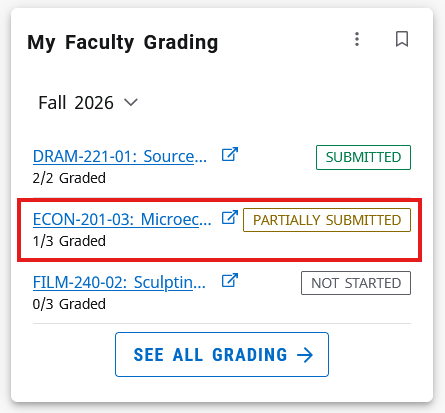
- Find the Faculty Grading card on your home screen. If it isn’t there, find it on the View All Cards page.
- On the card, click any course. We recommend this instead of clicking See All Grading, which adds an extra step.
- On the next page, click the course again to open the Enter Grades panel, which lists the students in your course.
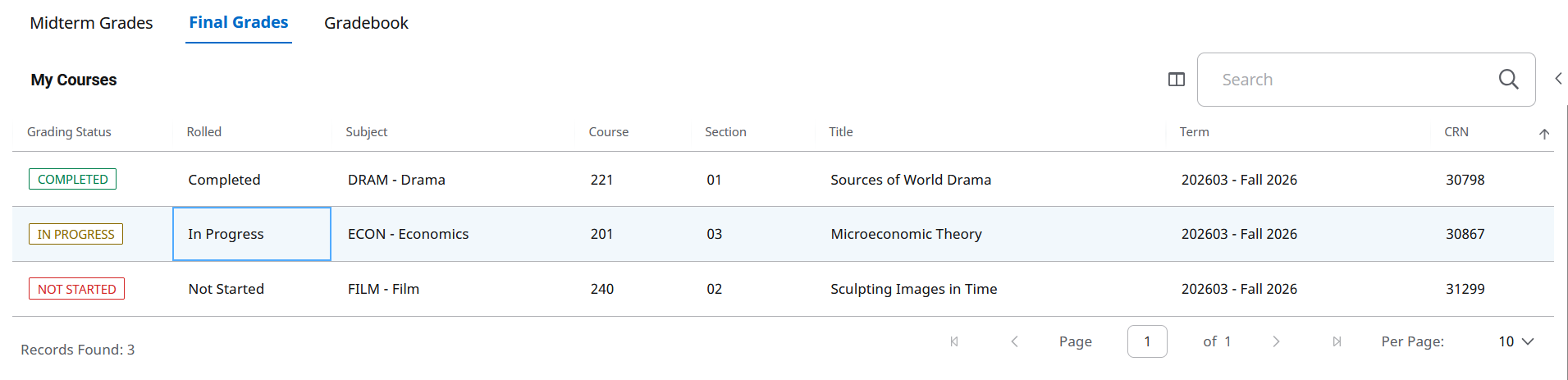
- Begin entering grades by clicking the drop down next to the final grade column, next to each corresponding student.
- Please note the letter grade order: A, A-, B+, B, B-, etc.

- Please note the letter grade order: A, A-, B+, B, B-, etc.
- Click Save at the bottom of the screen when you have finished to save your progress. Clicking Reset will undo any unsaved changes.
Note:
- You do not have to enter grades all at once. Click Save to save your progress and return later to enter additional grades.
- Grades cannot be changed after they are rolled. If grades have rolled, a check mark will replace the final grade drop down.
Import Final Grades with an Excel Spreadsheet
Overview
You may prefer to track and enter grades on an excel spreadsheet, instead of entering them online in the webpage drop downs.
This guide will walk you through how to do that. First, you’ll navigate to the Faculty Grading Page by clicking into the My Faculty Grading card, and then click on the course you want to enter grades for. Second, you will export a template that auto-fills the necessary course information to import your class grades. Third, you will enter and save grades in this template file. Lastly, you will import the file on the same webpage you exported your grading template.
Find the Course to Enter Grades
- Navigate click on the My Faculty Grading card to go to the Faculty Grading Page.

- On the Faculty Grading page, select the course you want to enter grades for.
- The Enter Grades panel will populate at the bottom of the page, showing the students in your course and the final grade drop down.

Export the Class Grading Template
Now that you’ve selected the course for final grading, you will create an excel template to enter grades.
- On the upper right-hand side, click the gear icon, which will populate a drop down.
- On the drop down, click Export Template. This will generate an pop-up prompting you to export the template as an .xls file or an .xlsx file.

- Choose either file options (.xls or .xlsx ), and click Export. Your file has now downloaded a template with the grading information.

Entering Grades in Excel
- You can edit the excel document and delete certain columns, but there are 4 columns you must keep:
- Term Code (e.g., 202601)
- CRN (e.g, 10994)
- Student ID (999123456)
- Final Grade
- In the Final Grade column, enter the student’s grade (e.g., A, B-, C+).
- IMPORTANT: Make sure you save your changes before moving on to the next step. Otherwise, your unsaved grade entries will not import!

Last Steps! Importing Grades
Now you will import the excel file with the updated grade(s). On the grading webpage make sure you are still on the correct course. The course CRN in your excel spreadsheet should match the course CRN on the webpage. If they do not match, an error will prevent you from entering incorrect grades.
- Click the Gear icon again, and click Import.

- In the Import pop-up, click the Browse button to select your file.
- Click Upload.
- Click Continue.

- Preview the file, and click Continue again.
- Make sure your columns have mapped correctly, and click Continue again.
- The drop downs should match each asterisked *column. You will not be able to continue if they do not match.

- The drop downs should match each asterisked *column. You will not be able to continue if they do not match.
- When validating your data, confirm the student’s grade, then click Continue.
- When finishing your import, you will be notified that the import is complete without errors. Click Finish.
Success! You have now imported the student’s grade.
Notes:
- Grades cannot be changed after they are rolled. If grades have rolled, a check mark will replace the final grade drop down.
- You may import multiple grades for one course from an excel template.
- You do not need to update the grades all at once.
- Make sure the course CRN in your excel spreadsheet matches the course CRN on the webpage. If they do not match, an error will prevent you from entering incorrect grades.
- Make sure you save your changes in the excel spreadsheet before importing.
- For example: If you change your grade from B+ to A- in the excel spreadsheet, but you did not save your changes in the file, the grade will be imported as a B+, not an A-.
Classroom Management
View Your Courses (Current Courses and Past Courses)
The My Classes card shows the courses you’re teaching this semester and the courses you’ve taught in the past. Current courses appear at the top. Click the “Class list” link next to a course to view its roster, enrollment counts, waitlist information, and more.
How to find your courses
- Log into MyVassar
- Click the My Classes card on your home screen OR
- Search for the My Classes card in the View All Cards page

- Search for the My Classes card in the View All Cards page
- After clicking the My Classes card, you will land on the page that lists courses you are currently teaching and courses you taught in the past.
- Look at Associated Term to confirm when this course was taught.
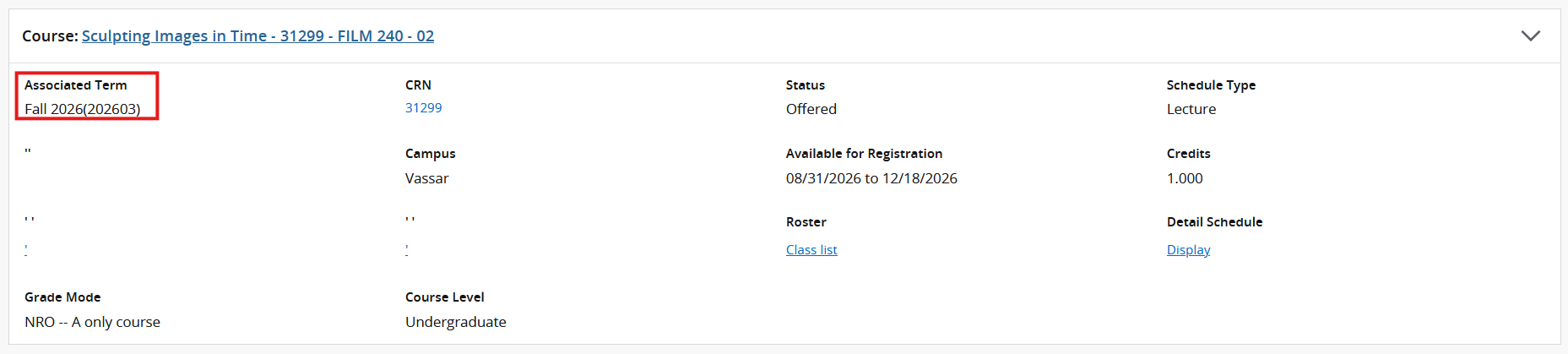
- Look at Associated Term to confirm when this course was taught.
Information under each course
Each course listing includes:
- Associated Term: the term when the course is or was taught (for example, Spring 2027 or Fall 2025)
- Class list link: opens your roster and waitlist for the course
- CRN link: opens a window with more information about the class, including:
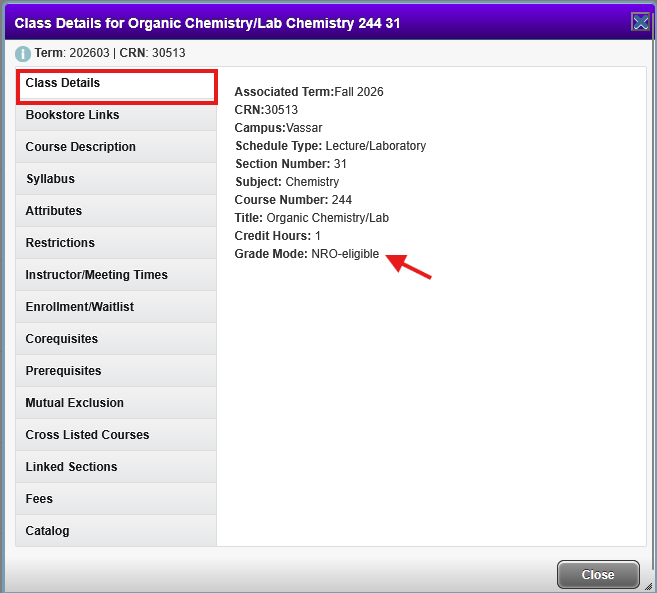
- Class details: the grade mode (for example, NRO or Normal)
- Class description: the full course description from the Vassar catalogue
- Meeting times/location: when and where the class meets
- Prerequisites: any courses students must take before this one
View Your Class Roster
From the My Classes card, click on the class list (roster) link to view who is in your course, waitlist information, enrollment counts, and more.
Locate the My Classes card
- Click the My Classes card on your home screen OR
- Search for the My Classes card in the View All Cards page

- Search for the My Classes card in the View All Cards page
- After clicking the My Classes card, scroll to the course. Courses are ordered from the most current semester to the oldest semester.
- Inside the course box, click the Class List link under Roster.
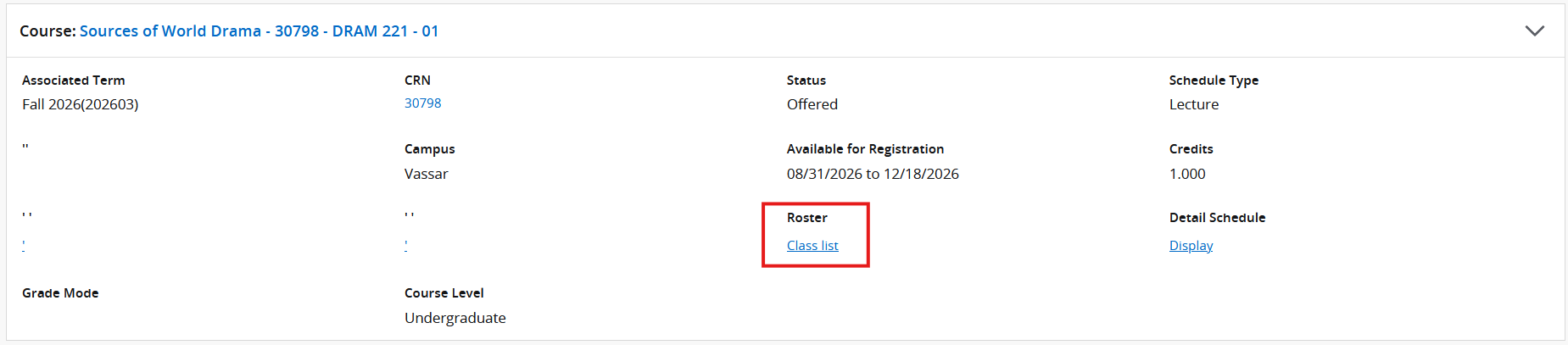
- You can now see your roster for that class.
What you can do in the Class List
- View the maximum, actual, and remaining number of seats for enrollment, the waitlist, and any cross-listed sections in the Enrollment Counts table.
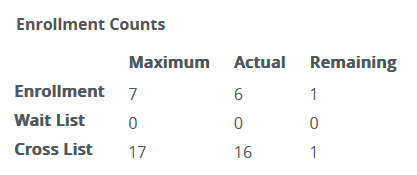
- View enrolled students on the Class List tab.
- View waitlisted students on the Waitlist tab.
- Email students by checking the boxes next to their names and clicking the Email icon.

- Open the grading portal to enter final grades once the final grading period begins. To do this, locate the “Final” column and click the Enter grade link or grade.
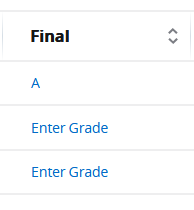
- Export your roster into an excel spreadsheet by clicking the Export button.
- Print your roster with student photos by clicking the Print button.
Note:
- Vassar does not process midterm grades. The Midterm column can’t be removed from the system, so the midterm row is marked “No Access” to show that you don’t need to enter midterm grades.
Advisee Information
Find Advisee Information
How to Find Your Advisees
- Log in to MyVassar.
- Click the My Advisees card on your home screen. If it isn’t there, find it on the View All Cards page. This opens the Advisee Search page.

- Choose a term to see the advisees assigned to you during that term. The most recent term is selected by default, so to see your current advisees, leave it as is.
- Click View My Advisee Listing to see all your advisees for that term. To find a specific advisee, search by Student ID, student email, or name.
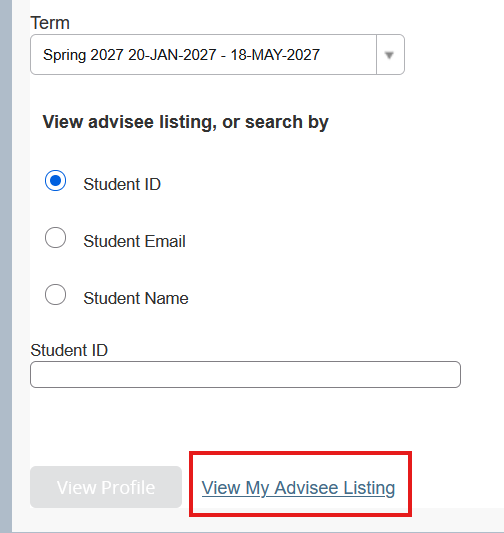
- Click an advisee’s name to view their student profile.

Information Available in Your Advisee's Student Profile
You can access the following from your advisee’s student profile:
- Status (for example, Active Student)
- Primary and secondary advisors
- Major and correlate sequences
- Overall units and GPA
- Registered courses
- Academic transcript under Additional Links.
- Note: Your advisee’s general education requirement progress for their First Year Writing Seminar, Foreign Language Proficiency, and Quantitative Analysis is now located in Degree Works. Read the General Education Requirements guide to learn more.
Note:
Your advisee’s general education requirement progress for their First Year Writing Seminar, Foreign Language Proficiency, and Quantitative Analysis is now located in Degree Works. Read the General Education Requirements guide to learn more.
Find Advisee Transcripts
- Click the My Advisees card

- You will land on the Advisee Search page. On this page you can do the following:
- Adjust the term to find advisees assigned to you at that time. If you want to access your current advisees, select the most current term.
- Search for a specific advisee with their Student ID, student email, or name.
- Click View My Advisee Listing to view all your advisees for a select term.

- After locating your advisee, click the advisee’s name to view their student profile.

- On the left side of their student profile, click Academic transcript under Additional Links.

You will be prompted to select Undergraduate and Unofficial Transcript in the Transcript Level and Transcript Type drop downs, respectively.
Click Submit.

- You are now viewing your advisee’s academic transcript.

Printing/Saving Transcript as a PDF
You may print your advisee’s academic transcript or save it as a PDF by clicking the Print button in the upper right hand side of the academic transcript page.
What You'll See on the Academic Transcript
- Courses taken at Vassar, organized by term (e.g., Spring 2027)
- Any accepted transfer credits
- Courses that are still in progress
- Grades and GPA
- PLEASE NOTE: General Education Requirements are now viewed in Degree Works. Read the guide below to learn more.
General Education Requirements
A student’s progress for General Education Requirements are now located in Degree Works. It shows the student’s progress (complete, in progress, or incomplete) for each of the 3 requirements:
- First Year Writing Seminar
- Foreign Language Proficiency
- Quantitative Analysis
How to Find the Degree Works Card
- Locate Degree Works card on your home page OR
- Click View All Cards and search “Degree Works” if it does not appear on your home screen.
- Click on the card link, which will take you to the Degree Works page. If you have not logged in recently, you may be prompted to log into Degree Works.

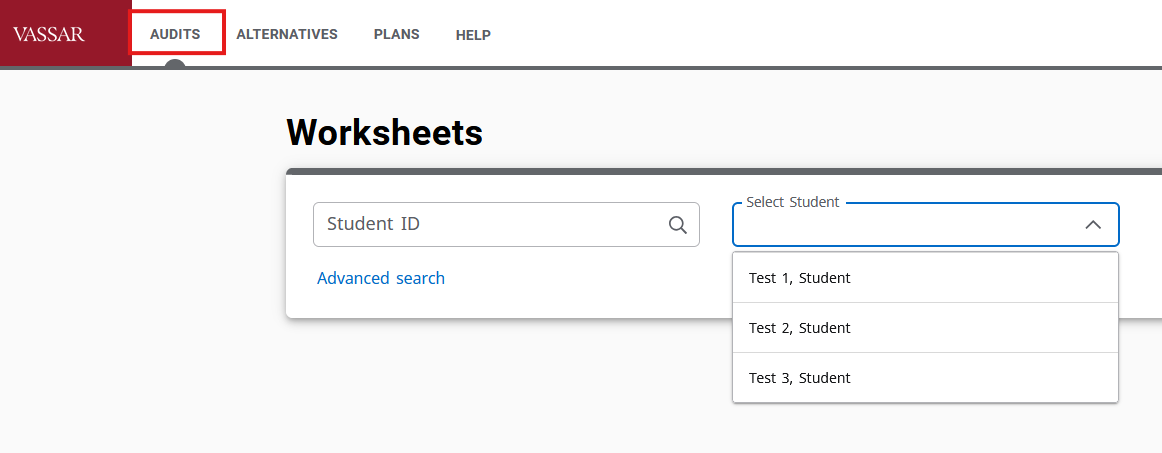
Look up the student
On the Audits page, look up your advisee by:
- Selecting them from the dropdowns
- Look up their name with the advanced search tool.
General Degree Requirements
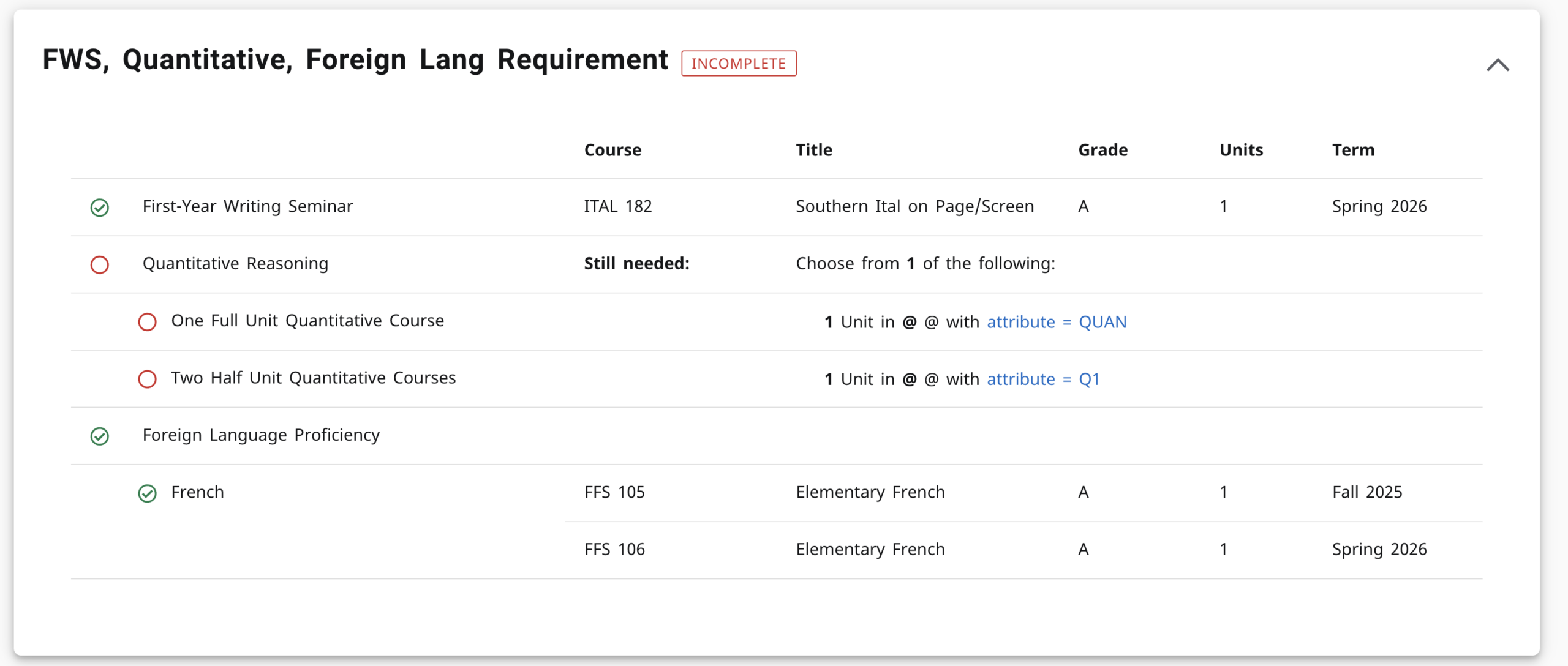
After you look up the student, scroll to the “FWS, Quantitative, Foreign Lang Requirement” block. It shows whether each requirement is:
- Complete

- Incomplete (the student has not taken nor are they currently taking a course that meets the requirement)

- In progress (they are currently taking a course that meets the requirement)

Schedule of Classes
Finding the Schedule of Classes in MyVassar
Begin by clicking on the Schedule of Classes card and selecting the term (Spring 2027). Terms go as far back as 1996. You’ll land on the search page where you can use a simple search or an advanced search to narrow the courses you are viewing in the Schedule of Classes.
Follow the step-by-step guide below!
Locate the Schedule of Classes
- Log into MyVassar
- If the Schedule of Classes is not located on your Home page, click View All Cards and search “Schedule of Classes”

- You can:
- Click on the link to enter the Schedule of Classes AND/OR
- Bookmark it to your home page to quickly access it in the future
- After clicking the Schedule of Classes card, select the appropriate term (e.g., Spring 2027). Click continue.

- You have now landed on the search page, where you can:
- Use the simple search to look up courses by Subject (e.g., Women Feminist Queer Studies), Course Number, and/or Keyword.
- Use the advanced search to look up courses by instructor, unit amount, open sections, six-week courses, and more.
To learn more about how to search for courses, follow the next visual guide: Schedule of Classes Search Tools.
Note
- Term information is available as far back as Fall 1996.
- Make sure you have selected the correct term for your search!
Schedule of Classes Search Tools
After selecting the term you can use a simple and/or advanced search to narrow down your search in the schedule of classes.
Simple Search
Search for courses by:
- Subject (e.g., Women Feminist Queer Studies)
- You can look up multiple subjects at once (e.g., Women Feminist Queer Studies AND Africana Studies)
- Course Number (e.g., 250 for ANST-250, ANTH-250, PHED-250, RELI-250)
- Look up an exact course number (type 101 to find all courses with the course number 101)
- Look up a course number range by attaching % at the end of the number. For example:
- Type 1% to find all 100-level courses
- Type 2% to find all 200-level courses
- Type 3% to find all 300-level courses
- Keyword
- Uses AND logic
- Typing “Black Feminism” will only populate results that include “Black” AND “Feminism.”
Simple Search Example:
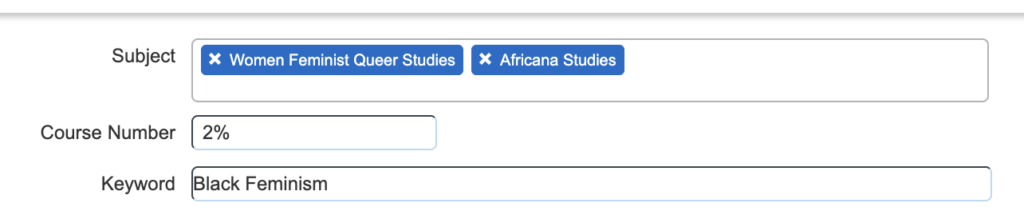
You want to find a 200-level course from the Women Feminist Queer Studies department or the Africana Studies department with Black Feminism as a keyword. This simple search populates the following result below:
Advanced Search
Click the Advanced Search button and search for courses by:
- Keyword (uses OR logic)
- Typing “Black Feminisms” here would populate results that include the keyword “Black” or “Feminisms”. Therefore, far more results would appear because a course with “Black” as a keyword or a course with “Feminisms” as a keyword would appear.
- Instructor
- Select 1 or multiple instructors. Selecting multiple instructors will show courses taught by either instructor or both, therefore expanding your search results.
- Title
- Credit Unit Range [# to #]
- If you want only 0.5-unit courses, type “0.5” in each section
- Meeting Days
- Select the days you want your course to take place
- Please Note! Selecting 1 day will populate courses that take place ONLY on that day. For example, selecting Monday will not include courses that take place on Monday and Wednesday. Results will only show courses taking place on Monday.
- Start Time/End Time
- Use the drop downs [Hour, Minute, AM/PM] to find courses that take place within a specific time. For example, select 11 AM to 2:45 PM to find courses that begin on or after 11 AM and end on or before 2:45 PM.
- Open sections
- Check the open section box to only show courses that have seats available.
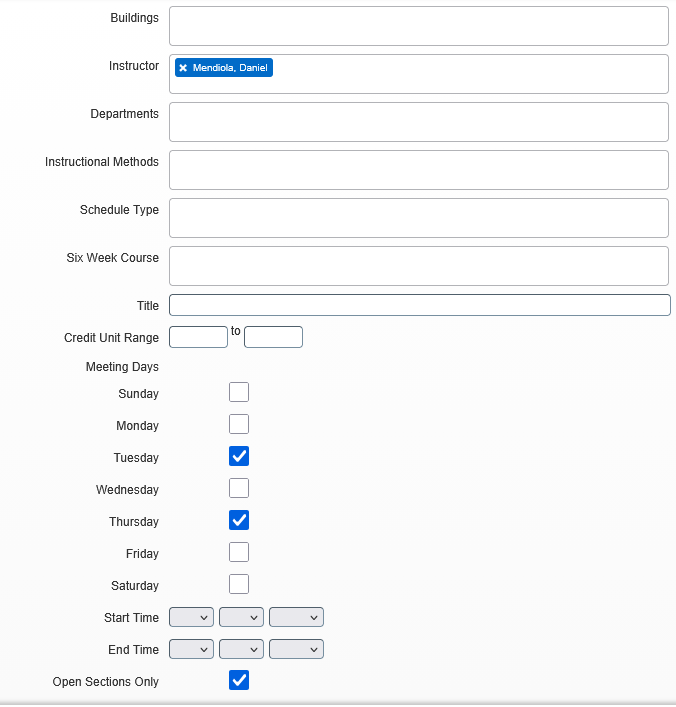
Advanced Search Example:
You want to find courses with a specific professor that still have seats available and take place on Monday and Wednesday.
Performing an advanced search will populate the following results below:
Note
- If you need to adjust your search, click Search Again in the upper right hand corner of your search results page.
Your Search Results
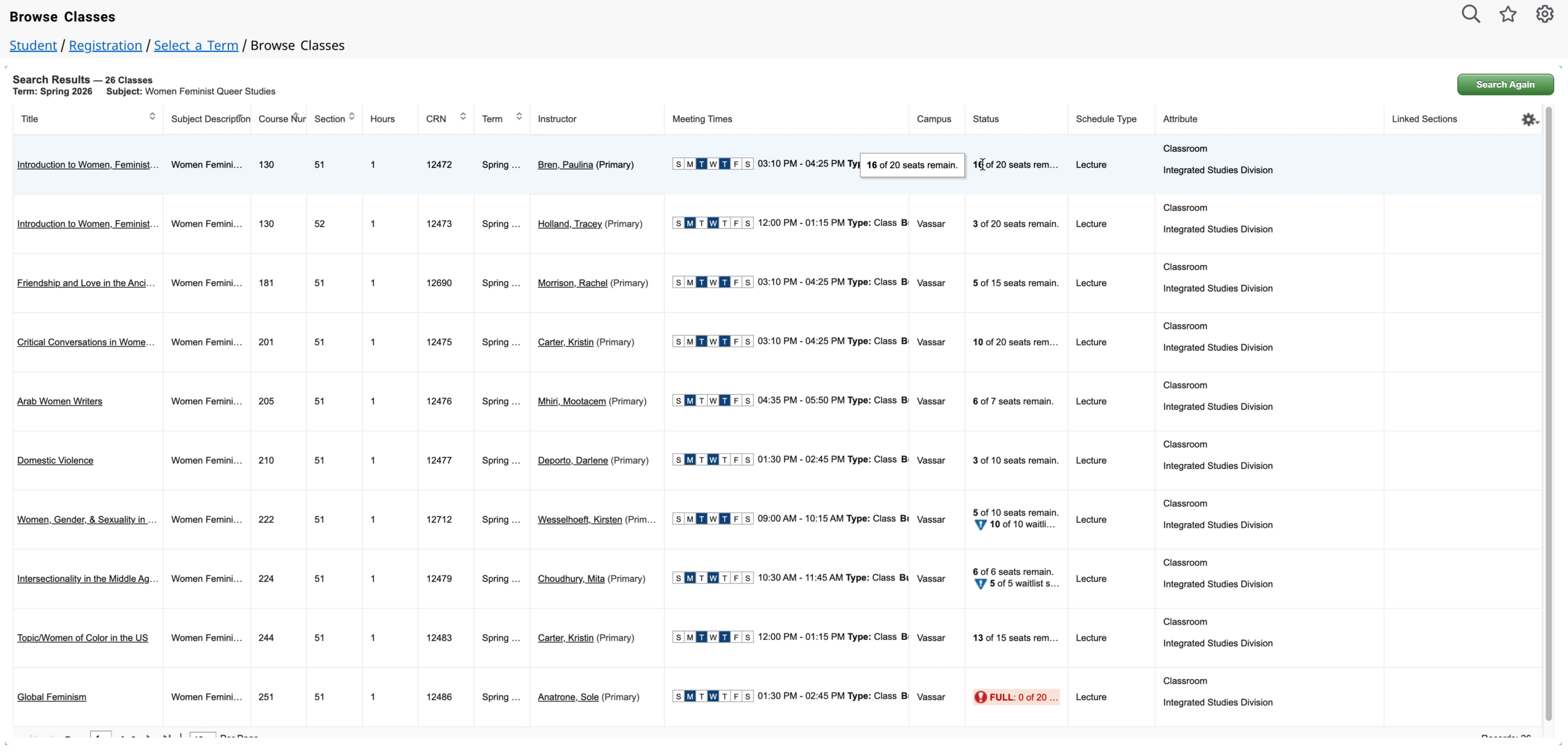
The search results page looks quite different compared to the Schedule of Classes we’re used to in AskBanner. However, the information you found there is available in MyVassar’s Schedule of Classes.
This guide will walk you through where that information is, including where you can find whether a course has prerequisites or is cross-listed with another course.
Your Search Result Page
Your Schedule of Classes search results will show the following for each course:
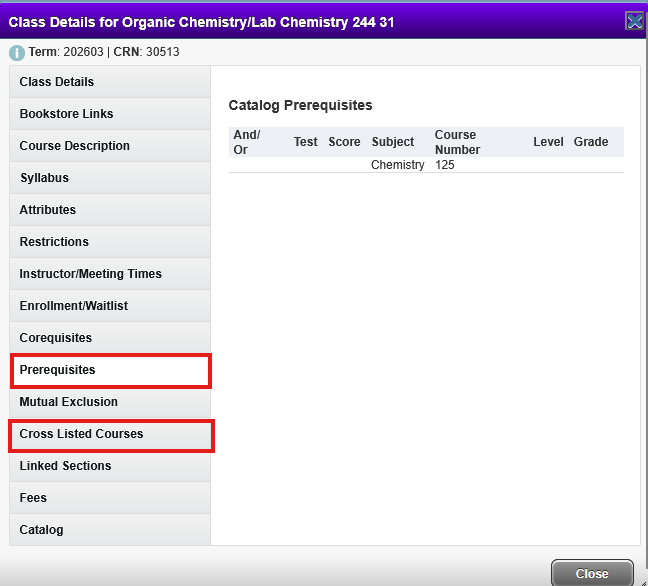
- Title – Clicking the linked title will generate a pop up with tabs that include prerequisite information, cross-listed information, class description, and more.
- Instructor – Shows who is instructing the course
- Meeting Times – Shows where and when a course is happening
- Status – How many students have filled the offered seats for that course
Prerequisite and Cross-Listed Information
- To find Prerequisite and Cross-Listed information, click on the underlined title link (e.g., Global Geography) which will show more class details as a popup.
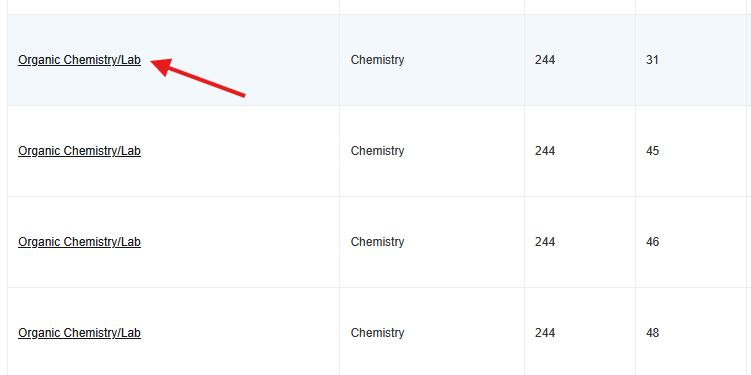
- Click the Prerequisite tab to see if the course has any prerequisites.
- Click the Cross Listed Courses tab to see if the course cross-lists with another course.
NRO Information
You can identify whether a course is NRO eligible
Notes
- If you need to adjust your search, click Search Again in the upper right hand corner of your search results page.

Frequently Asked Questions
- More FAQs coming soon!
Getting into MyVassar
When is MyVassar launching?
MyVassar is going live January, 2027.
However, we plan to give the campus access to the MyVassar test environment over the Summer and early Fall to get acquainted with the platform.
Where can I find MyVassar?
MyVassar will be available on your Vassar OneLogin page when it goes live in January, 2027.
How do I log into MyVassar
You will use your Single Sign On (SSO) to securely access MyVassar.
Will I need to enter a pin to access any part of MyVassar?
No, you will no longer need to enter a pin to access the system. The SSO login with dual (DUO) authentication eliminates the need for PINs and 999 numbers.
Student Information
How far back does student information go?
Student data dates back to 1996.
Can I access my rosters from previous semesters?
Yes, you will be able to see your class lists or rosters from previous semesters.
What are student profiles and how do we access them?
A student profile will show a range of information, including:
- Major and Correlate Sequence
- GPA
- Total units
- Current enrollment
- Student’s Vassar email
- Advisors’ name and Vassar email
- Unofficial transcript: If you have an advising relationship with the student, you may view that student’s unofficial transcript.
What information can I access about my advisee?
You can access your advisee’s student profile and their transcript.
Can I access information about my past advisees?
Yes, you can see past advisees’ information in the My Advisees card. Select the appropriate term. Either search for your advisee by their ID, email, or name, or view your full advisee listing for that term.
Course Information
Where can I look up past course information?
If you want to see information about courses you have not taught, go to the Schedule of Classes. The schedule of classes shows course information as far back as Fall 1996.
To view information about your courses, go to Assignment History in the My Classes card. This will show you all courses you taught in the past and are currently teaching.
Is the My Classes card similar to Moodle, where it automatically populates current courses?
MyVassar will populate information based on the Academic Period selected, defaulting to the current term first.
Where can I find the course catalog?
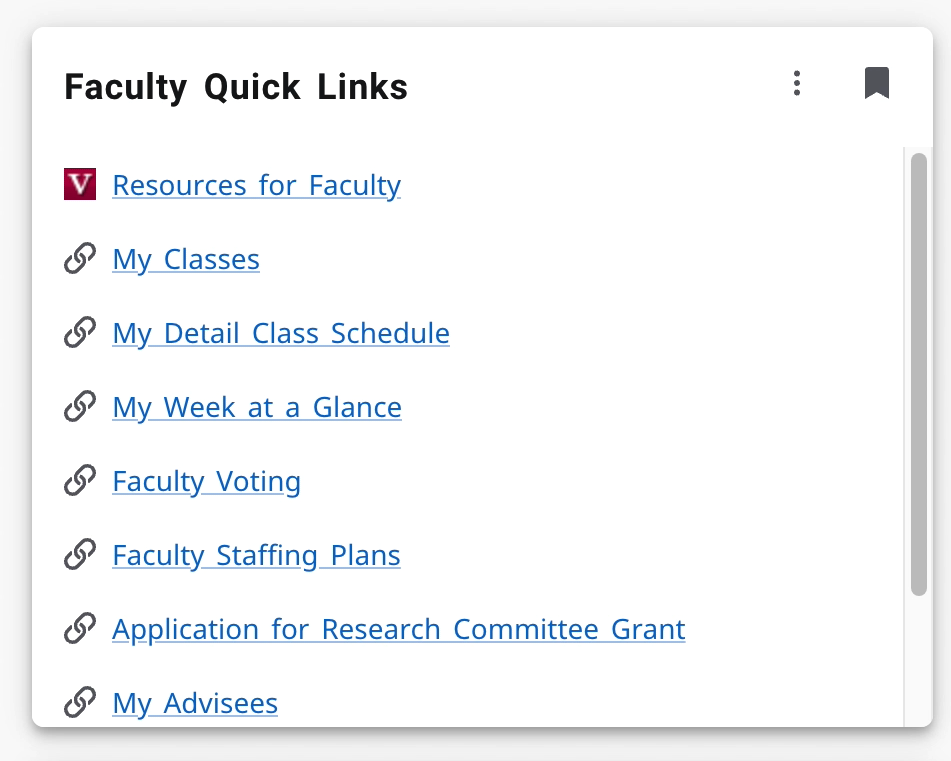
You can find the course catalog in the Faculty Quick Links card.